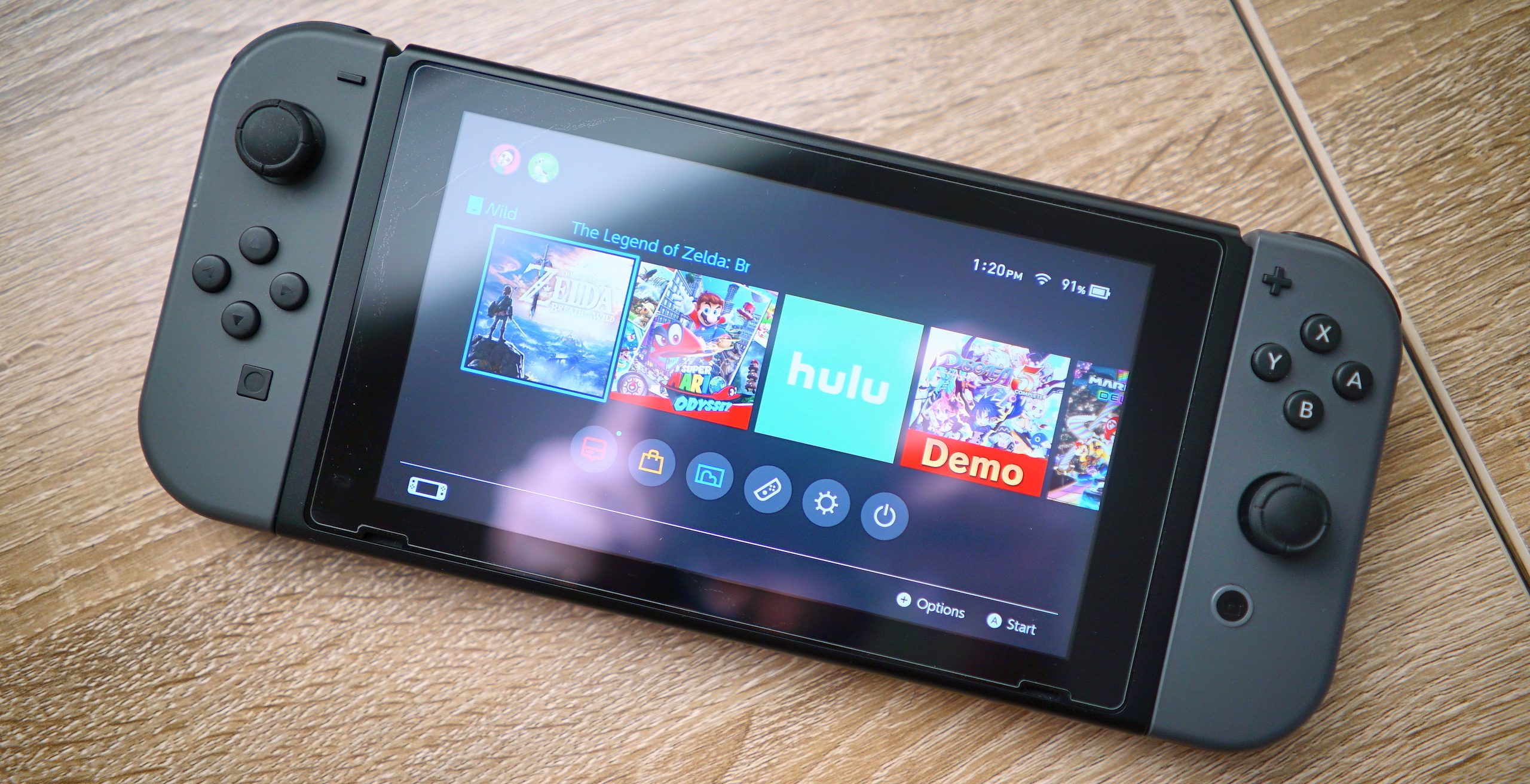
Selling a Nintendo Switch or Switch 2 takes about an hour of prep, and most of that time goes to protecting your game saves and your Nintendo Account. This guide covers what each model is worth on Swappa right now, the four steps to finish before you list, what is different about selling a Switch 2, and how to price, photograph, and ship your console so it sells quickly.
Quick Answer
To sell a Nintendo Switch or Switch 2, back up your saves, unlink the console from your Virtual Game Cards, remove the microSD card, and run Initialize Console under System Settings > System > Formatting Options. Then price it against real sales. As of October 9, 2026, a Switch OLED Model sold for about $203 on average on Swappa and an original Switch for about $141, while a used Switch 2 needs to come in under Nintendo’s $499.99 price for a new one. Once it is reset, sell your Nintendo Switch or Switch 2 on Swappa.
What Your Nintendo Switch or Switch 2 Is Worth Right Now
Start with the model, because the Switch 2 and the three original Switch models sell at very different prices. The model number is printed on the back of the console.
| Model | Model Number | Average Sale Price on Swappa | Live Price Page |
|---|---|---|---|
| Nintendo Switch 2 | BEE-001 | Not enough recent sales to show; listings run about $420 to $670 and average about $529 | Switch 2 prices |
| Nintendo Switch OLED Model | HEG-001 | About $203 (64GB) | Switch OLED prices |
| Nintendo Switch (original, V1 and V2) | HAC-001 and HAC-001(-01) | About $141 (32GB) | Switch prices |
| Nintendo Switch Lite | HDH-001 | Not enough recent sales to show; listings average about $144 | Switch Lite prices |
According to Swappa price data (October 9, 2026). Average listing prices run higher than sales, at $247 for the OLED and $194 for the original Switch, so price against sales, not listings. Prices change daily.
A few things move the number:
- A used Switch 2 has to beat new retail. Nintendo sells a new Switch 2 for $499.99 and the Mario Kart World Bundle for $549.99. The average Swappa listing sits above $499.99, with sealed consoles and bundles at the top of the range, so price a used, opened Switch 2 below new retail. Check current Switch 2 listings to see what you are up against.
- V2 beats V1. Swappa lists both original models on one page, but the V2 (model HAC-001(-01), serial number starting with XKW) gets roughly 4.5 to 9 hours of battery life versus 2.5 to 6.5 hours on the V1. Put “V2” in your listing title if you have one.
- A complete kit sells faster. The dock, both Joy-Con, the Joy-Con grip, the power adapter, and an HDMI cable are what buyers expect with an OLED, original Switch, or Switch 2. A Switch 2 also comes with a USB-C charging cable and two Joy-Con 2 straps. The original box helps too.
- Condition matters. Screen scratches, loose Joy-Con, and a worn battery all push buyers toward the next listing.
If you are deciding when to sell, especially before a holiday or a Switch 2 upgrade, The Best Time to Sell Electronics covers the seasonal pattern.
Before You List: 4 Steps to Protect Your Account and Saves
The steps are the same on every Switch model, including the Switch 2. Do them in order. A factory reset erases save data, so the backup comes first.
First, while you are still signed in, confirm the console is not banned. Nintendo can permanently block a console that was modified for piracy from its online services, and the ban stays with the hardware through a reset. Connect to Wi-Fi and open the Nintendo eShop. If it loads, you are fine. Error code 2124-4007 or 2124-4508 means the console is banned, and Swappa does not allow network-banned consoles. Switch 2 buyers check for this more than anyone, and the Used Nintendo Switch 2 Buyer’s Guide explains why.
1. Back Up or Transfer Your Save Data
Your saves live in the console’s system memory, not on the game card or microSD card. You have three ways to keep them:
- Save Data Cloud, included with Nintendo Switch Online ($19.99 a year for an individual membership), backs up most games automatically. A few games do not support it.
- Transfer Your Save Data moves saves to another Switch or Switch 2 signed in to the same Nintendo Account.
- System Transfer to Nintendo Switch 2 moves users, saves, and settings in one step if you are upgrading.
The full steps, including which games need a different method, are in How to Back Up Nintendo Switch Game Saves Before You Sell.
2. Unlink the Console From Your Virtual Game Cards
Your digital games belong to your Nintendo Account, not the console. Nintendo’s system update 20.0.0 in 2025 replaced the old “primary console” setting with Virtual Game Cards, so guides that tell you to deregister a primary console in the eShop are out of date. To unlink the Switch or Switch 2 you are selling:
- Select Virtual Game Cards on the HOME Menu.
- Select Settings.
- Select the console you are selling.
- Select Unlink, then Unlink again to confirm.
Do this on the console while it is online. The Nintendo Account website can also unlink a console, but only once per year.
3. Remove the microSD Card
Initialize Console does not erase the microSD card, or the microSD Express card in a Switch 2. Keep the card, or if you want to include it in the sale, format it first under System Settings > System > Formatting Options.
4. Factory Reset With Initialize Console
Connect the console to Wi-Fi and plug it in, then go to System Settings > System > Formatting Options > Initialize Console, select Next, and select Initialize. The Switch 2 uses the same menu path. Have your Parental Controls PIN ready if you set one. When the console restarts to the first-time setup screen, the reset worked. The full walkthrough is in How to Factory Reset a Nintendo Switch or Switch 2.
Make Sure It Meets Swappa’s Listing Criteria
Real people approve Swappa listings before they go live, and a game console must be fully functional and in its factory software state. A Switch running custom firmware or other software changes cannot be listed until it is restored. Before you create the listing, check:
- Screen and touch: no cracks, no dead spots, and touch works across the whole panel.
- Joy-Con: both attach securely (on rails on the original and OLED, by magnet on the Switch 2) and both connect wirelessly. Test for drift under System Settings > Controllers and Sensors > Calibrate Control Sticks. With your thumbs off the sticks, the cursor should stay centered. On a Switch Lite, test the built-in sticks the same way.
- Dock and TV output: the Switch 2, OLED, and original Switch show a picture on a TV through the dock. The Switch Lite has no TV output.
- Charging and battery: it charges over USB-C and holds a charge.
- Online access: the eShop loads, which you confirmed before the reset.
- Game card slot, buttons, Wi-Fi, and headphone jack all work.
If a Joy-Con stick drifts, repair it (a replacement stick is an inexpensive part) or leave that Joy-Con out of the listing. If the screen is cracked, the console won’t power on, or it is banned, it does not qualify, and Selling Broken or For-Parts Devices for Cash explains where it will still sell.
Price It to Sell, Then Do the Fee Math
Set your Ask Price near the average sale price for your exact model, not near the highest listing. Go a little under the average to sell in days, or a little over if your kit is complete and in excellent shape. A Switch 2 has no sale average yet, so start from the current listings and stay under the $499.99 Nintendo charges for a new one.
Two costs come out of your price, so build them in:
- Swappa’s 3% seller fee on the sold price. Listing is free. On a $200 Ask Price, the fee is $6, so you receive $194 before payment processing.
- Payment processing: PayPal’s 3.49% + $0.49 (or Stripe’s 2.9% + $0.30 for select sellers).
You also pay for shipping, so include ground shipping with tracking and insurance in your Ask Price. The buyer pays a separate 3% buyer fee, which is added on top of your Ask Price. Marketplace Selling Fees: What You Pay on Every Platform shows the full payout math.
Sell Your Nintendo Switch on Swappa
Create a Listing That Sells
Pick the exact model page so buyers find you: Nintendo Switch 2, Nintendo Switch, Switch OLED Model, or Switch Lite. Then:
- Take clear photos of the front, back, both Joy-Con, the dock, and the screen powered on. How to Photograph Electronics for Listings covers light and angles.
- Add the verification photo with your listing code written on paper next to the console. What Is a Verification Photo on Swappa? shows how.
- List exactly what is included: dock, Joy-Con, grip, straps, power adapter, USB-C and HDMI cables, box, and any screen protector, case, or microSD card. Anything in the photos that is not included should be called out.
- Describe honest condition: scratches, battery life, whether it is a V1 or V2, and, on a Switch 2, that the eShop loaded before you reset it. How to Write a Listing Description That Sells has a template.
Selling spare controllers too? Joy-Con 2 and the Switch 2 Pro Controller have their own pages, so list any extras separately from the console.
Ship It Within Two Business Days
When your Switch sells, you get paid directly through PayPal (or Stripe), and the clock starts. Swappa requires you to ship within two business days of payment and to add the tracking number to the sale page by the end of that second business day. Ship only to the address on the buyer’s PayPal payment, use ground shipping with tracking and full insurance, and keep your receipt.
Pack the console, dock, and Joy-Con so nothing shifts, and protect the screen. Best Way to Ship a Nintendo Switch walks through box sizes, padding, and carrier costs.
Swappa vs. GameStop vs. eBay: Where a Switch Sells Best
| Where You Sell | What You Get | Fees | Trade-Off |
|---|---|---|---|
| Swappa | Close to market value, from a buyer who pays you directly | 3% seller fee plus payment processing | You list, pack, and ship it |
| GameStop trade-in | An instant offer in cash or store credit | None, but the offer sits well below resale value | Fastest, lowest payout |
| eBay | A large audience | A final value fee far higher than 3%, charged on shipping too | Higher fees and more buyer disputes |
| Facebook Marketplace (local) | Cash in hand | None for local pickup | Meetups, no-shows, and no payment protection |
For a working Switch, selling on Swappa usually nets the most after fees. GameStop makes sense only if speed matters more than money. The side-by-side details are on Swappa vs. GameStop and Swappa vs. eBay, and How to Sell a Used Console and Games for the Most Money covers bundling games and controllers.
Selling more than a Switch? Start with Used Game Consoles: The Complete Guide to Buying and Selling.
Selling a Nintendo Switch 2: What Is Different
The four steps above work the same on a Switch 2. A few things are specific to it:
- Bundle games stay with you. The Mario Kart World Bundle includes the game as a digital download, not a game card, so once it is redeemed it belongs to your Nintendo Account. The same goes for the 3-month Nintendo Switch Online code in the box. List the console as a standard Switch 2 unless the bundle is still sealed.
- Storage cards are microSD Express. The Switch 2 stores games only on microSD Express cards, which cost more than standard microSD cards. If you include one, format it first and name it in the listing, since buyers will want it.
- Include the Switch 2 dock and AC adapter. Original Switch accessories are not a substitute. The Switch 2 draws more power, and its dock is what drives 4K output on a TV.
- Mention the ban check. A banned Switch 2 looks normal until it goes online, so a line saying the eShop loaded before you reset it answers the first question most buyers have.
Sell Your Nintendo Switch 2 on Swappa
Upgrading to a Switch 2? Sell in This Order
If a Switch 2 is your next console, you don’t have to keep the old one around until the new one arrives. First unlink the old Switch from your Virtual Game Cards (step 2 above). Then go to System Settings > System > System Transfer to Nintendo Switch 2 and choose the server option. It uploads your users and saves to Nintendo’s server and resets the old Switch to factory settings when it finishes. The data stays available for one year, and you download it during the Switch 2’s first-time setup.
Once the upload finishes, turn the old Switch on, confirm it shows the first-time setup screen, and list it. Buying the Switch 2 used as well? Read the Used Nintendo Switch 2 Buyer’s Guide first, since a console ban is the biggest risk on that model.
FAQ
How much can I sell my Nintendo Switch for?
As of October 9, 2026, a Nintendo Switch OLED Model sold for about $203 on average on Swappa and an original Switch for about $141. Switch Lite listings averaged about $144. Prices change daily, so check the live Swappa price page for your model before you set your price.
How much is a used Nintendo Switch 2 worth?
Swappa does not have enough Switch 2 sales yet to show an average sale price. As of October 9, 2026, Switch 2 listings on Swappa ran from about $420 to $670, with sealed consoles and bundles at the top. Nintendo sells a new Switch 2 for $499.99, so price a used, opened one below that.
Do I need to deregister my Nintendo Switch or Switch 2 before selling it?
The old primary console setting no longer exists. Since system update 20.0.0 in 2025, you unlink the console from your Virtual Game Cards instead, on both the Switch and the Switch 2: select Virtual Game Cards on the HOME Menu, then Settings, select the console, and select Unlink. Then factory reset it with Initialize Console.
Will I lose my games if I sell my Switch?
No. Digital games belong to your Nintendo Account, so you can download them again on any Switch or Switch 2 you sign in to. Save data is different: it is erased by a factory reset, so back it up with Save Data Cloud or move it to another console with Transfer Your Save Data or System Transfer first.
Can I sell a Nintendo Switch with Joy-Con drift on Swappa?
Swappa listings must be fully functional, so repair a drifting stick before you list or leave that Joy-Con out of the listing. The same applies to Joy-Con 2 on a Switch 2. You can test for drift under System Settings, Controllers and Sensors, Calibrate Control Sticks.
Is it better to sell my Switch or trade it in at GameStop?
Selling usually pays more. A GameStop trade-in is instant, but the offer is set well below what the console sells for, because the store needs room to resell it. On Swappa you pay a 3% seller fee plus payment processing and keep the rest.
The Bottom Line
Selling a Nintendo Switch or Switch 2 comes down to doing the prep in the right order: confirm the eShop loads, back up your saves, unlink your Virtual Game Cards, pull the microSD card, and run Initialize Console. Then price your model against real Swappa sales (for a Switch 2, under new retail), list everything that’s included, and ship within two business days. A clean, complete Switch at a fair price sells quickly.