Here’s How to Fix It
Missing notifications on an iPhone usually isn’t one big problem — it’s one of several small ones that each look identical from the outside. The app just doesn’t alert you. Whether it’s texts coming in silently, email badges not updating, or a calendar alert you never heard, the fix depends on where in the notification chain things broke down. Here’s how to work through it systematically.
Check the App’s Notification Permissions
The most common cause of missing notifications is that an app simply doesn’t have permission to show them. This happens all the time with newly installed apps — you tap “Don’t Allow” on the permissions prompt without thinking much about it, then wonder later why you’re not getting alerts.
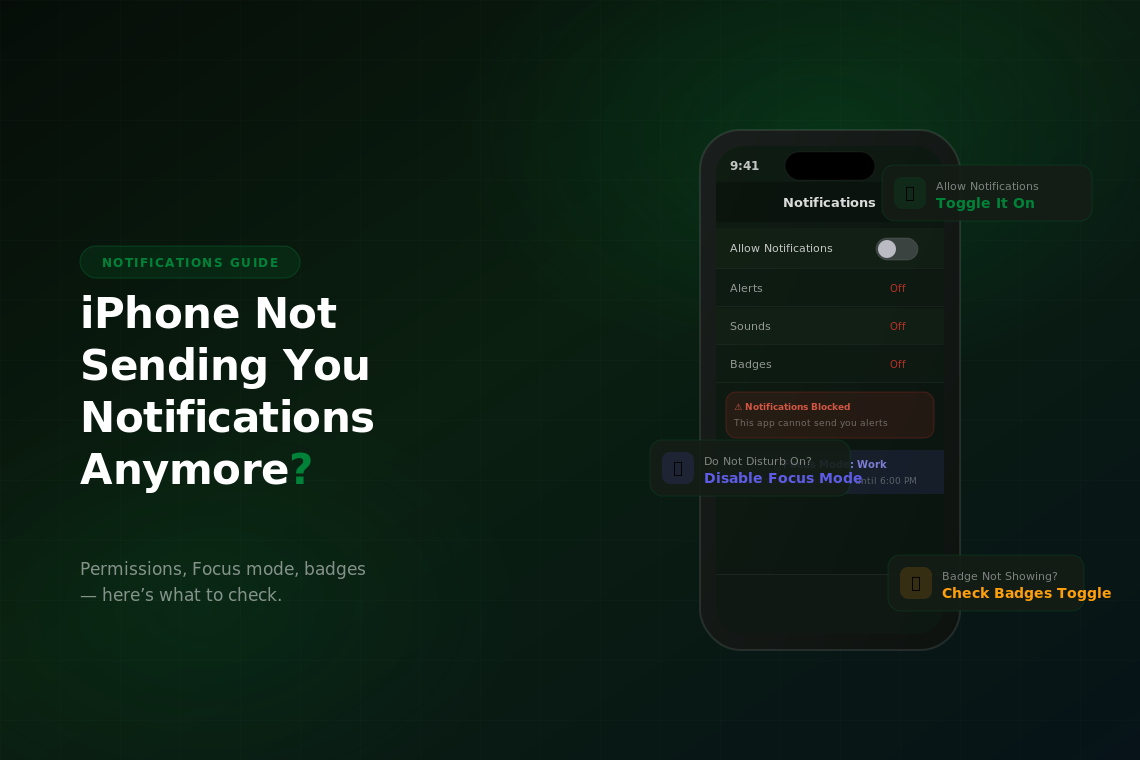
Go to Settings > Notifications and scroll down to the app in question. Tap it and check three things: Allow Notifications should be toggled on, Alerts should be enabled under the Alerts section, and the Notification Style should be set to Banners or Alerts (not None). If an app is set to None, it won’t show anything at all — no banner, no sound, no badge.
Also check the Lock Screen, Notification Center, and Banners checkboxes in that same menu. You can have all three or any combination. If Lock Screen is off, you’ll miss notifications that arrive while the phone is asleep. If Banners is off, nothing pops up while you’re using the phone. Most people want all three on for important apps.
Do Not Disturb and Focus Modes
Do Not Disturb and Focus modes are responsible for more “missing notification” complaints than almost anything else, because they’re easy to accidentally turn on and easy to forget about. A Focus mode can be scheduled to activate automatically at certain times, which means your phone might be suppressing notifications for hours without you realizing it.
Swipe down from the top right to open Control Center. If a Focus icon is lit up in the top right — a moon, a bed, a person symbol, or a custom one you’ve created — tap it to turn it off. Then check whether your notifications start coming through.
To see all your Focus schedules in one place, go to Settings > Focus. Tap each Focus mode and look under Set a Schedule to see if any are set to activate automatically. A Work Focus set to turn on 9–5 on weekdays, or a Sleep Focus scheduled to start at 10 PM, will silently eat notifications during those windows unless you’ve configured allowed apps and contacts carefully.
While you’re in the Focus settings, check the Allowed Notifications section for each mode. You can specify which apps and which contacts can still come through. If you want Messages and Phone to always notify you regardless of Focus mode, add them to the allowed list for every Focus you use.
Per-App Notification Settings Inside the App
Some apps have their own notification settings that override or layer on top of iOS settings. Instagram, Gmail, Slack, and most social and messaging apps have extensive in-app notification controls. You can have iOS fully permissioned for an app and still get no notifications because the app itself has them turned off.
Open the app, go to its settings (usually a profile icon or gear icon), and look for a Notifications section. Check whether push notifications are enabled there. Slack in particular has this issue — the iOS Settings entry looks fine, but inside Slack you have to enable notifications per-workspace and per-channel.
Email apps are another common culprit. In the Mail app, each account has its own notification setting. Going to Settings > Notifications > Mail shows you the Mail app’s overall permission, but within Mail itself you can configure each account individually under Settings > Notifications > Mail > Customize Notifications, then selecting each account separately.
Badge Numbers Not Updating
If an app’s icon badge — the red number dot — isn’t appearing or isn’t updating correctly, check the app’s notification settings again and make sure Badges is toggled on specifically. Badges are a separate toggle from banners and sounds, and they’re easy to miss when setting things up.
Background App Refresh plays a role here too. Apps that sync in the background — email, messaging, news — need Background App Refresh enabled to know when new content has arrived and update the badge accordingly. Go to Settings > General > Background App Refresh and make sure it’s on for the relevant apps. If you turned it off globally to save battery, that’s likely why badges from those apps are stale.
Notifications Showing on Lock Screen but Not Banner
If you’re seeing notifications in Notification Center or on the lock screen but not getting live banners while you’re actively using your phone, check the Banners toggle in the app’s notification settings. Under Notification Style for the app, look for the When Unlocked section — this controls whether a banner appears while you’re actively using the phone. Make sure it’s set to Temporary or Persistent rather than Off.
Temporary banners appear briefly and disappear on their own. Persistent banners stay on screen until you dismiss them. Which you prefer depends on the app — Temporary is fine for most things, but for time-sensitive apps like Messages or timers, Persistent makes sure you don’t miss it.
Still Missing Notifications After Checking Everything
If you’ve verified permissions, turned off Focus modes, and confirmed the app’s internal settings are correct and notifications are still missing, a restart fixes it most of the time. The iOS notification delivery system can get into a bad state after a heavy update or a system crash, and a clean restart re-initializes it.
If restarting doesn’t help, try removing and reinstalling the problem app. This resets all its stored permissions and settings back to default and prompts you fresh for notification access. It’s a more thorough reset than anything in the Settings menu can provide for a specific app.
Persistent notification issues across multiple apps after an iOS update sometimes indicate a deeper software problem that only a full device restore can address. If you’ve been struggling with this across the board, that’s worth considering. And if your phone is older and struggling with the current version of iOS in general, browsing used iPhones on Swappa is a practical option for getting back to a phone that runs iOS the way it was designed to.