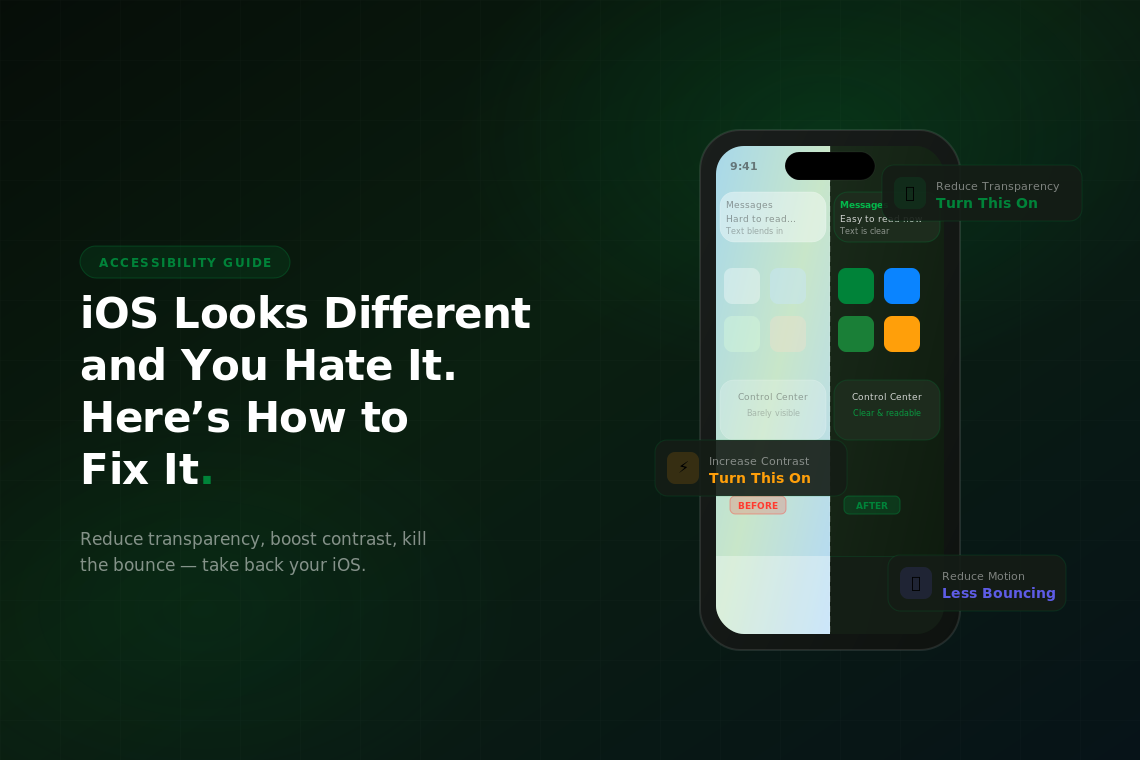
Apple’s Liquid Glass design, introduced in iOS 26, made menus, buttons, and panels translucent, and plenty of people found it harder to read. iOS 27 gives you more control than ever. This guide shows where every relevant setting lives in iOS 27, what each one changes, and a starter setup that makes your iPhone solid and readable again.
Quick Answer
In iOS 27, open Settings > Appearance > Liquid Glass and drag the slider right for a more tinted, solid look. For the biggest change, turn on Reduce Transparency and Increase Contrast in Settings > Accessibility > Display & Text Size. On iOS 26.1 or later, the same control is a Clear or Tinted choice under Settings > Display & Brightness.
What Changed: Liquid Glass From iOS 26 to iOS 27
If the setting you remember is not where you left it, this is why.
| Version | Released | What it means for the look |
|---|---|---|
| iOS 26 | September 2025 | Introduced Liquid Glass: translucent, frosted panels and a lighter overall palette |
| iOS 26.1 | Fall 2025 | Added a Liquid Glass setting with two choices, Clear or Tinted, under Settings > Display & Brightness |
| iOS 27 | September 14, 2026 | Replaced the two choices with a slider, moved it to a new Settings > Appearance menu, and refined contrast across the system |
iOS 27 runs on the same iPhones as iOS 26: the iPhone 11 and newer, plus the iPhone SE (2nd and 3rd generation). Check your version in Settings > General > About.
Step 1: Use the Liquid Glass Slider (iOS 27)
This is the fastest fix, and it is new in iOS 27.
- Open Settings and tap Appearance.
- Tap Liquid Glass.
- Drag the slider. Left is clearer and more transparent. Right adds tint and opacity. The midpoint is Apple’s default.
A preview on the same screen shows the effect as you drag. The setting applies system-wide, from Control Center and Home Screen folders to notifications on the Lock Screen.
Still on iOS 26? Go to Settings > Display & Brightness > Liquid Glass and choose Tinted for a more opaque look with more contrast.
One note: the slider and the accessibility settings in Step 2 overlap. If Reduce Transparency or Increase Contrast is already on, you may need to turn them off before the slider has any effect.
Step 2: The Two Accessibility Settings That Fix Most of It
If the slider does not go far enough, these two settings strip the glass out almost entirely. Both live in Settings > Accessibility > Display & Text Size.
Reduce Transparency replaces the frosted blur behind the dock, folders, Control Center, and notifications with solid backgrounds. It is less stylish, but contrast improves dramatically and text gets much easier to read. If the new look strains your eyes, turn this on first.
Increase Contrast darkens borders and backgrounds so buttons, cards, and controls stand out clearly from whatever sits behind them. Liquid Glass relies on subtle shifts in color and transparency to suggest depth. Increase Contrast forces those edges to be explicit.
Together, these two make iOS look much closer to the solid, older iOS design many people prefer. You give up some polish and gain clarity.
Step 3: Make Text Easier to Read
iOS 27 moved the main text controls to the new Appearance menu.
- Bold Text (Settings > Appearance) makes system fonts heavier across menus, labels, and body text. It pairs well with Increase Contrast.
- Text Size (Settings > Appearance) sets the text size used in apps that support Dynamic Type. For sizes beyond the standard range, go to Settings > Accessibility > Display & Text Size > Larger Text.
- Display Zoom (Settings > Appearance) enlarges everything on screen, including icons and controls, not only text. Use it if you want the whole phone to feel bigger.
- Button Shapes (Settings > Accessibility > Display & Text Size) adds outlines or backgrounds to text-only buttons. Liquid Glass made many buttons look like floating text, and this setting makes it obvious what is tappable.
Step 4: Calm the Motion
The springy animations and zoom transitions bother some people, and for others they cause eye strain or motion discomfort. Both fixes live in Settings > Accessibility > Motion.
- Reduce Motion swaps most zoom and scale animations for gentler cross-fades. Opening apps, Control Center, and notifications still animate, just more quietly.
- Limit Frame Rate caps the display at 60Hz on iPhones with ProMotion. Motion looks less fluid and attention-grabbing, and it can save a little battery.
Step 5: Soften Color and Brightness
If the lighter palette feels harsh, these settings help, especially at night.
- Reduce White Point (Settings > Accessibility > Display & Text Size) dims the brightest whites beyond what the brightness slider can do. On a glass-heavy interface with lots of white, it makes a big difference.
- Color Filters (same menu) includes a Color Tint option that adds a warm or cool overlay to the whole screen.
- True Tone and Night Shift (Settings > Display & Brightness) adjust the display’s color temperature to your surroundings and warm it after sunset. Neither is an accessibility setting, but both soften the look.
Tone Down Your App Icons Too
Liquid Glass also changed app icons. To make them easier to scan, touch and hold an empty spot on your Home Screen, tap the edit button in the top-left corner, then tap Customize. Choose Default or Dark for full-color icons, or Tinted to make every icon one color. Clear is the most glass-like option, so skip it if you dislike the effect. For a full cleanup, see How to Actually Organize Your iPhone Home Screen.
A Starter Setup If You Dislike Liquid Glass
Try this combination, then back off anything you do not need.
| Goal | Setting | Where in iOS 27 |
|---|---|---|
| Less see-through glass | Liquid Glass slider toward the right | Settings > Appearance > Liquid Glass |
| Solid backgrounds everywhere | Reduce Transparency: On | Settings > Accessibility > Display & Text Size |
| Clearer edges and buttons | Increase Contrast: On | Settings > Accessibility > Display & Text Size |
| Heavier, easier-to-read text | Bold Text: On | Settings > Appearance |
| Obvious tappable buttons | Button Shapes: On | Settings > Accessibility > Display & Text Size |
| Gentler animations | Reduce Motion: On | Settings > Accessibility > Motion |
| Less glare | Reduce White Point: On | Settings > Accessibility > Display & Text Size |
Everything still works the same way. The phone just looks more solid, more readable, and more like a tool than a design statement.
When It Is Not Just the Design
If your iPhone still feels like a fight after all of this, the design may not be the only problem. Newer iOS versions ask more of older hardware, and an aging battery or nearly full storage can make any iPhone feel sluggish. Start with Common iPhone Problems and How to Fix Them, and check your battery’s maximum capacity under Settings > Battery.
If it is time to move on, a newer used iPhone costs far less than new. On Swappa, devices must be fully functional, with a clean IMEI and no activation lock, and you are entitled to a refund if a phone is not as described. The Used iPhone Buyer’s Guide: Every Generation Ranked (2026) can help you pick a model. Upgrading? Sell your old iPhone on Swappa to cover part of the cost.
FAQ
Can you turn off Liquid Glass in iOS 27?
Not completely, but you can get close. Drag the slider in Settings > Appearance > Liquid Glass to the right for a tinted, more opaque look, or turn on Reduce Transparency in Settings > Accessibility > Display & Text Size to replace most translucent effects with solid backgrounds.
Where did the Liquid Glass setting go in iOS 27?
iOS 27 moved it from Display & Brightness to a new Appearance menu. Open Settings > Appearance > Liquid Glass. The iOS 26.1 choice between Clear and Tinted is now a slider.
Why can’t I adjust the Liquid Glass slider?
The slider overlaps with two accessibility settings. If Reduce Transparency or Increase Contrast is turned on, turn them off in Settings > Accessibility > Display & Text Size, then try the slider again.
Where are Bold Text and Text Size in iOS 27?
Both moved to Settings > Appearance, along with Display Zoom and the Liquid Glass slider. For text sizes beyond the standard range, use Settings > Accessibility > Display & Text Size > Larger Text.
Which iPhones can run iOS 27?
iOS 27 supports the iPhone 11 and newer, plus the iPhone SE (2nd and 3rd generation). That is the same list as iOS 26. Apple Intelligence features require an iPhone 15 Pro or newer.
The Bottom Line
You do not have to live with the default Liquid Glass look. In iOS 27, start with the Liquid Glass slider in Settings > Appearance, then add Reduce Transparency, Increase Contrast, and Bold Text if you want a fully solid, high-contrast iPhone. If the phone itself is the problem, a newer used iPhone is an affordable fix.