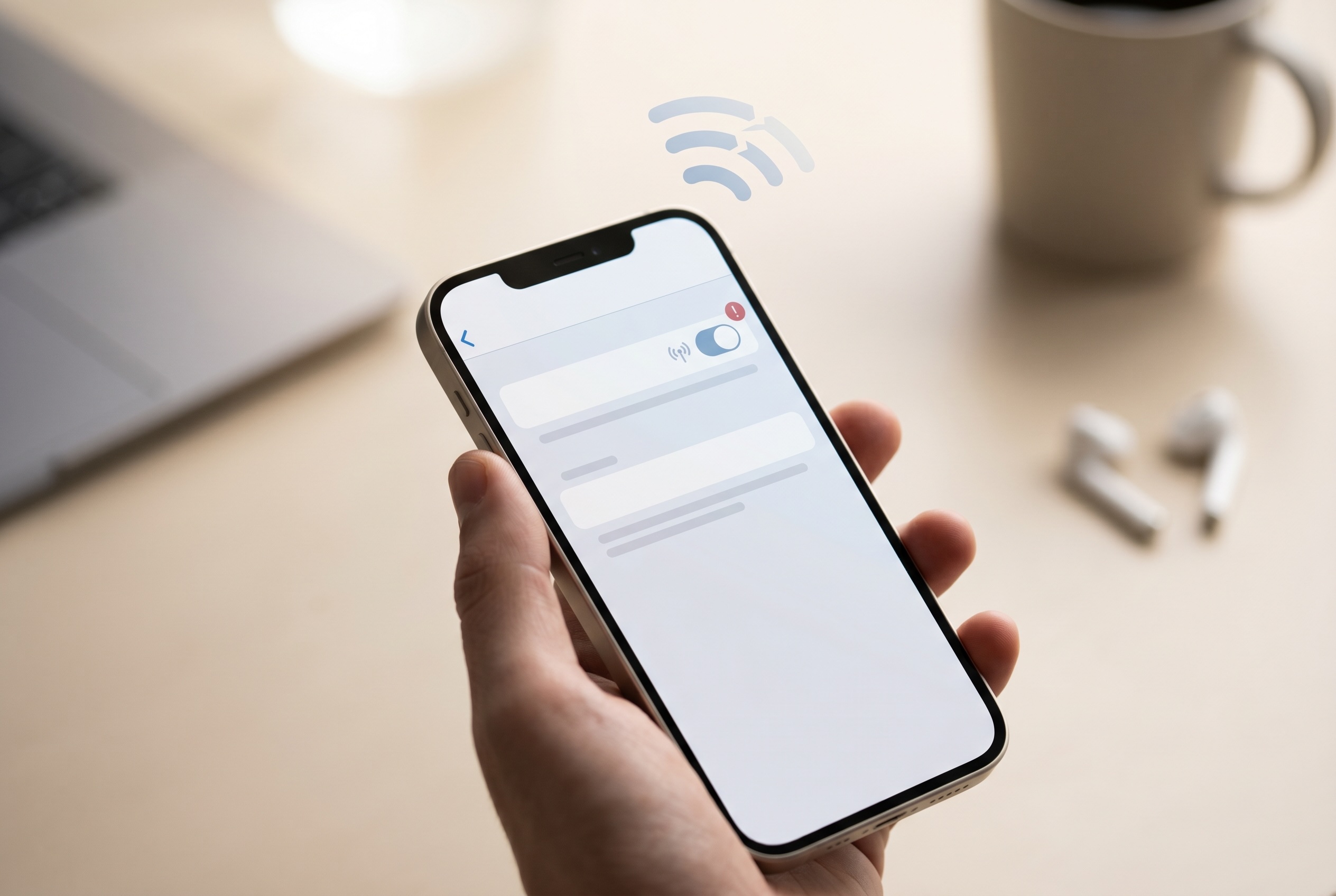
Personal Hotspot works seamlessly until the moment you really need it: at an airport, in a hotel, or in a coffee shop with unusable Wi-Fi. When it fails, the cause could be your carrier plan, a setting on the iPhone, the device you’re connecting, or a glitch a restart will clear. Here’s how to work through each one, in the order Apple recommends.
This guide is part of Common iPhone Problems and How to Fix Them.
Quick Answer
Go to Settings > Personal Hotspot and make sure Allow Others to Join is on. If Personal Hotspot is missing or you can’t turn it on, check that your carrier plan includes it. Otherwise, restart both devices, update to the latest iOS 27, and on an iPhone 12 or later try Maximize Compatibility. If it still won’t connect, try USB or Bluetooth, then Reset Network Settings.
First, Check Your Carrier Plan
Personal Hotspot isn’t included on every cellular plan. Some carriers require a hotspot add-on, some cap how much data you can share, and some budget and prepaid plans leave it out entirely. If you can’t find or turn on Personal Hotspot, your plan is the first suspect.
Open your carrier’s app or website and look for “Mobile Hotspot,” “Tethering” or “Data Sharing” in your plan details. If it’s not there, you’ll need to add it or change plans.
If your plan includes hotspot but the option is still missing, check for a carrier settings update: go to Settings > General > About and wait a few seconds. If an update is available, you’ll see a prompt to install it.
Turn On Allow Others to Join and Check the Password
Go to Settings > Personal Hotspot and make sure Allow Others to Join is turned on. If it already is, turn it off, wait a few seconds, and turn it back on to restart the hotspot.
While you’re there:
- Check the Wi-Fi Password. It must be at least 8 characters. If you’re not sure what it is, set a new one, then have the other device forget the hotspot network and rejoin with the new password.
- Check Airplane Mode. Personal Hotspot uses your cellular connection, so it can’t share anything while Airplane Mode is on. Open Control Center and make sure the airplane icon isn’t highlighted.
Turn On Maximize Compatibility (iPhone 12 and Later)
If other devices can’t see or join your hotspot, especially older laptops, tablets or game consoles, try Maximize Compatibility. Go to Settings > Personal Hotspot and turn it on. It switches the hotspot to a mode more devices can connect to.
The tradeoff, per Apple: internet performance and Wi-Fi security may be reduced for connected devices while it’s on. Use it to get connected, and turn it off if you don’t need it.
Restart Both Devices and Update iOS
Restart the iPhone that’s sharing the connection and the device trying to connect. That clears stuck network state on both ends and fixes a surprising number of hotspot problems.
Then go to Settings > General > Software Update and install the latest version of iOS 27, which runs on the iPhone 11 and newer. Apple’s troubleshooting steps start with having the latest version installed.
Try USB or Bluetooth Instead of Wi-Fi
Personal Hotspot can share your connection three ways: Wi-Fi, Bluetooth and USB. If Wi-Fi won’t cooperate, another method often will, and USB is the most stable choice for work.
- USB on a Mac: connect the iPhone with a cable, unlock it, and tap Trust if asked. The Mac should see the iPhone as a network connection.
- USB on Windows: install the Apple Devices app from the Microsoft Store, which provides the drivers Windows needs. Older setups used iTunes for this. Then connect, unlock the iPhone and tap Trust.
- Bluetooth: pair the iPhone with your computer first, then choose the iPhone as a network in your computer’s Bluetooth settings. Bluetooth is slower, but it’s useful when Wi-Fi is crowded or flaky.
Fix Problems on the Connecting Device
If your hotspot shows up but the other device won’t join, or joins with no internet, the problem may be on that device.
- Turn Wi-Fi off and back on on the connecting device, and make sure it’s joining your hotspot’s network and not an old network with a similar name.
- Forget the network and rejoin. On a Mac, open System Settings > Wi-Fi, find the hotspot and choose Forget This Network. On Windows, go to Settings > Network & internet > Wi-Fi > Manage known networks and remove it. Then reconnect with the current password.
- For another iPhone or iPad, check that Auto-Join is on for the hotspot network (Settings > Wi-Fi, then tap the info button).
- For Instant Hotspot, which lets your own Apple devices join without a password, both devices need to be signed in to the same Apple Account with Bluetooth and Wi-Fi turned on.
Toggle Cellular Data, Then Reset Network Settings
Hotspot runs over cellular data, and sometimes the data connection itself gets stuck. Go to Settings > Cellular, turn Cellular Data off, wait 10 seconds, and turn it back on. Then try the hotspot again.
If it still won’t work, reset the iPhone’s network settings: Settings > General > Transfer or Reset iPhone > Reset > Reset Network Settings. This erases saved Wi-Fi networks and passwords, VPN settings and Bluetooth pairings, so have your Wi-Fi passwords handy. Afterward, turn Allow Others to Join back on, set a hotspot password, and connect again. This clears most hotspot problems that aren’t caused by the carrier.
Still Not Working? Call Your Carrier
If you’ve confirmed your plan includes hotspot, reset network settings, restarted both devices and tried Wi-Fi, USB and Bluetooth, contact your carrier. Hotspot can be restricted at the account level, and a carrier rep can often fix something no amount of iPhone troubleshooting will.
This is also common on prepaid and MVNO plans, which may include a small amount of hotspot data or none at all. Using a Used Phone on an MVNO: Mint, Visible & More and Will This Used Phone Work on My Carrier? explain what to check. If you recently moved your line to a new iPhone or switched to eSIM, see eSIM and Used Phones: What to Know Before You Buy.
When an Upgrade Makes Sense
If your iPhone is older and cellular performance has slipped overall, with slow data, a weak signal and an unreliable hotspot, the phone itself may be the bottleneck. Here are other signs it’s time for a phone upgrade. Every iPhone 12 and newer supports 5G, and a newer used iPhone is often the cheapest fix. If you are weighing the oldest 5G model, read our used iPhone 12 verdict. The Used iPhone Buyer’s Guide: Every Generation Ranked (2026) shows which models are worth it, and you can sell your current iPhone on Swappa to cover part of the upgrade.
For Wi-Fi and Bluetooth drops that aren’t hotspot related, see iPhone Won’t Stay Connected?.
Frequently Asked Questions
Why is my iPhone hotspot not showing up on other devices?
Make sure Allow Others to Join is on in Settings > Personal Hotspot and that Airplane Mode is off. If older devices still can’t see it, turn on Maximize Compatibility (iPhone 12 and later). Then turn Wi-Fi off and on on the other device and look for your iPhone’s network name.
Why can’t I turn on Personal Hotspot on my iPhone?
Usually your carrier plan doesn’t include hotspot, or your carrier hasn’t enabled it on your account. Check your plan details, install any carrier settings update from Settings > General > About, and contact your carrier if the option is still missing.
What does Maximize Compatibility do on iPhone?
It switches Personal Hotspot to a mode that more devices can connect to, which helps older laptops and gadgets that can’t see the hotspot. Apple notes that internet performance and Wi-Fi security may be reduced for connected devices while it’s on. It’s available on the iPhone 12 and later.
Does using Personal Hotspot cost extra?
It depends on your plan. Many unlimited plans include some hotspot data, while budget and prepaid plans may cap it, charge for an add-on, or leave it out. Check your plan details or ask your carrier.
Will Personal Hotspot work on a used iPhone?
Yes, as long as the iPhone works with your carrier and your plan includes hotspot. Personal Hotspot is a plan feature, not something tied to the phone’s previous owner. Before buying, check that the phone is compatible with your carrier and not carrier locked to a different network.
Work From the Plan to the Phone
Most hotspot problems come down to the plan, one toggle, or a stuck network connection. Check your plan, confirm Allow Others to Join, try Maximize Compatibility and a restart, and you’ll usually be back online in minutes. Reset Network Settings handles most of what’s left.
If your iPhone is the weak link, you don’t have to pay full price for an upgrade. Our guide to what iPhone to buy next can help you choose. Swappa staff review listings before they go live, and payments run through PayPal with buyer protection.