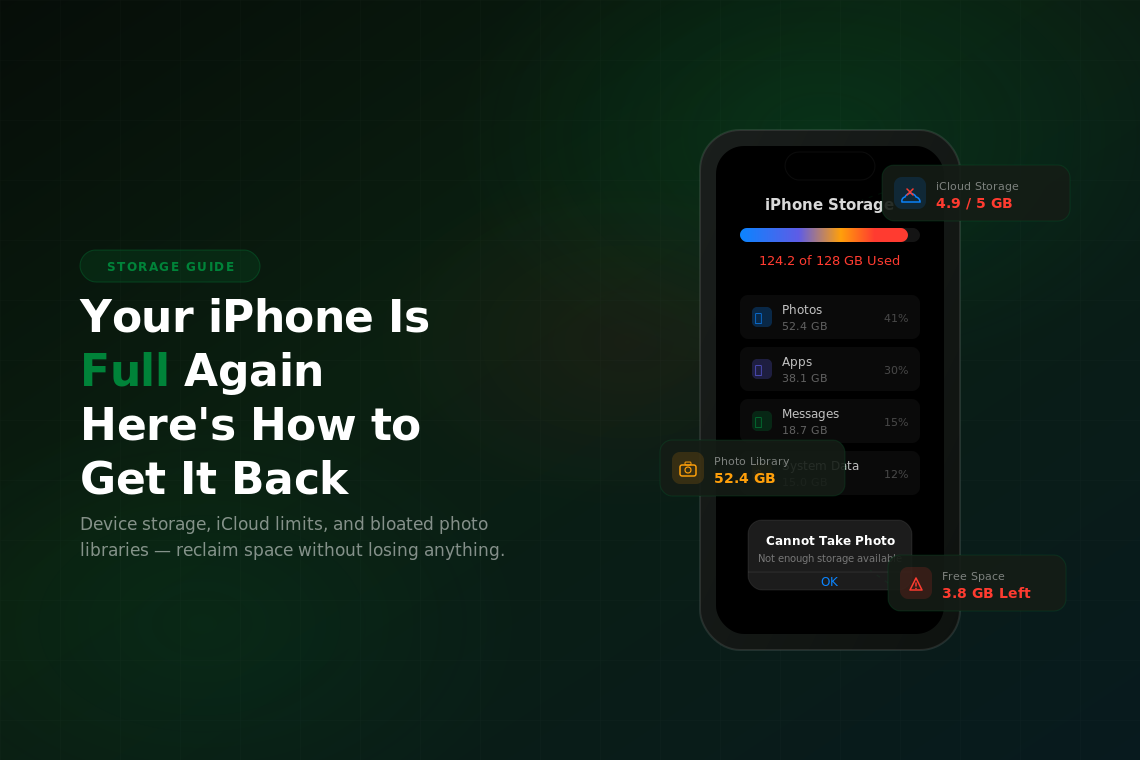
Few things are more frustrating than pulling up your camera for a photo and getting hit with the “Cannot Take Photo” message. Your iPhone is out of space, and it always seems to happen at the worst possible time. The thing is, most people don’t actually need a bigger phone — they just need to clean up the storage they’ve got.
Here’s where all that space is going and how to claw it back.
Figure Out What’s Taking Up All the Space
Before you start deleting things at random, take a look at the breakdown. Go to Settings > General > iPhone Storage and wait a few seconds for it to load. You’ll get a color-coded bar showing exactly what’s eating your storage — apps, photos, messages, system data, and so on.
For most people, photos and videos are the biggest offenders by a wide margin. A single minute of 4K video takes up around 400 MB. If you’ve had your phone for a couple years and never cleaned house, you could easily have 30–40 GB of photos and videos sitting there.
Below the bar chart, you’ll see a list of every app sorted by size. Tap any app and you’ll see two numbers: the app itself and its data. Sometimes the app is tiny but its data is enormous — podcasts you’ve downloaded, offline playlists in Spotify, cached videos in social media apps. That’s where the hidden storage hogs live.
A few things you can do right away: delete apps you haven’t opened in months (iOS even flags these for you), clear out old text message threads with lots of photos and videos, and dump your Safari cache. That alone can free up several gigabytes without much effort.
Your iCloud Is Full Too — Now What?
So you tried backing up to iCloud and got the “iCloud Storage Full” notification instead. Apple gives everyone 5 GB for free, which sounds reasonable until you realize that a single phone backup can eat most of that on its own.
Head to Settings > [your name] > iCloud > Manage Account Storage to see the damage. You’ll probably find that Backups and Photos are the two biggest categories.
Start with backups. Tap Backups and you might see old backups from devices you don’t even own anymore — an old iPad, a previous iPhone. Delete those. For your current device, tap into the backup details and you can toggle off apps you don’t care about backing up. That game you play once a month doesn’t need its data in iCloud.
Next, look at iCloud Drive and other apps. Old files, voice memos, and attachments pile up quietly. If you use Photos synced to iCloud, that’s usually the biggest chunk. You’ve got two choices: go through your photo library and delete what you don’t need, or accept that 5 GB isn’t enough and upgrade your plan. The 50 GB tier is $0.99/month, and the 200 GB plan is $2.99. For most people that’s the path of least resistance.
Your Photo Library Is Bigger Than You Think
Even if you’re not a heavy photographer, your photo library is probably larger than you’d expect. Live Photos store a short video clip with every shot. Burst mode captures dozens of frames when you just wanted one. Screenshots pile up. And if you’ve had iMessage threads going for years, every meme and photo anyone sent you is sitting in your library too.
The single best thing you can do is turn on Optimize iPhone Storage. Go to Settings > Photos and select it. This keeps full-resolution versions of your photos in iCloud and stores only smaller thumbnails on your phone. When you open a photo, it downloads the full version on the fly. You won’t notice a difference in daily use, but it can reclaim tens of gigabytes.
After that, spend five minutes cleaning up the obvious stuff. Open your Albums tab and scroll to the bottom — you’ll find a “Duplicates” album that flags photos iOS thinks are copies. Merge those. Check your “Bursts” album and keep only the best shot from each set. Look through “Screenshots” and delete anything older than a week or two.
And don’t forget to empty the Recently Deleted album when you’re done. Photos you “delete” sit there for 30 days and still count against your storage the entire time. Until you clear that album, you haven’t actually freed up anything.
Between optimizing your photo storage, cleaning up iCloud, and trimming the fat from your apps, you should be able to get a healthy amount of space back. And going forward, checking in on your storage once every few months keeps it from sneaking up on you again.