If you have an old iPad sitting on a desk gathering dust or in your desk drawer never to see the light of day again, sell it on Swappa.
Swappa’s community of knowledgeable buyers can’t wait to get their hands on your gently used iPad. Listing your old tablet on Swappa is easy and only takes a few minutes. List and sell your used iPad Swappa to fund an upgrade or pay for some bills.
Why You Should Use Swappa to Sell Your Used iPad
There are many reasons to sell your used iPad on Swappa. Here are just a few:
Fair fees – Keep more money in your pocket. All you’ll pay is a 3% fee to Swappa and the payment transaction fee.
Keep it out of the landfill – Your iPad has years of life left and someone will give you good money for it. Give it a 2nd life while pocketing some cash.
Human-Powered Support – Swappa has 24/7/365 people-powered support. Email our support desk and you will receive a quick response from a real person. It often takes less than 20 minutes to get a response.
Seller protections – Swappa uses PayPal as a primary payment processor giving sellers industry-leading seller protections.
What You’ll Need to List Your iPad
Our listing creation process is easy and should only take a couple of minutes. Read our article called Prepare to Sell Your iPad: Before Selling or Trading In a Used iPad to learn more about what you should do before listing or trading in your tablet.
Swappa and PayPal accounts – Register for free and connect your PayPal account to get paid.
Camera – you can use your smartphone camera or any other digital camera to take photos of the iPad for your listing.
Information about Your iPad – you’ll need to know the model name, ESN or IMEI number, storage capacity, and color.
Creating the iPad Listing
To start the listing process, use the large search bar at the top of the Swappa homepage or browse for your model on the iPad Tablets page.
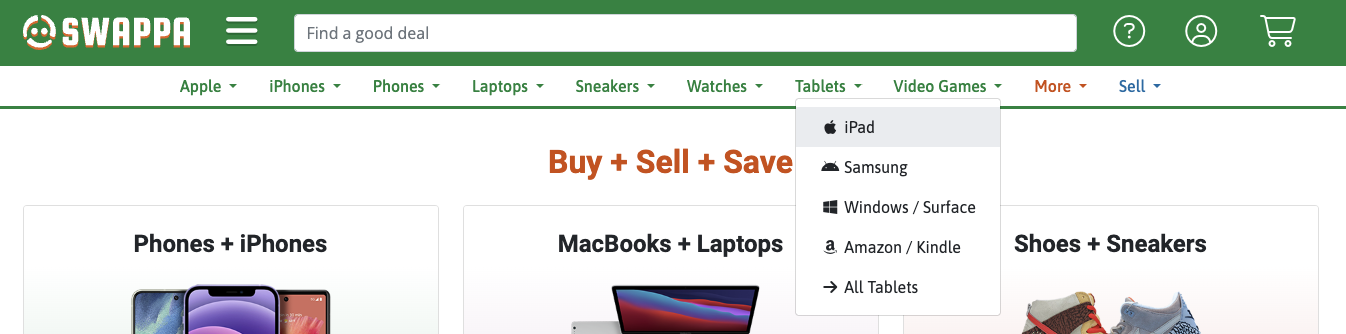
Once you find the model of iPad you want to list, click the ‘Sell This’ link. If you’re not logged into your Swappa account yet, you’ll need to login or register for an account to start selling.

The next step is selecting the carrier. If it’s a WiFi-only iPad, you will select ‘Wi-Fi’ from the dropdown menu. Click the big green ‘Sell on Swappa’ button to open the listing creation form.
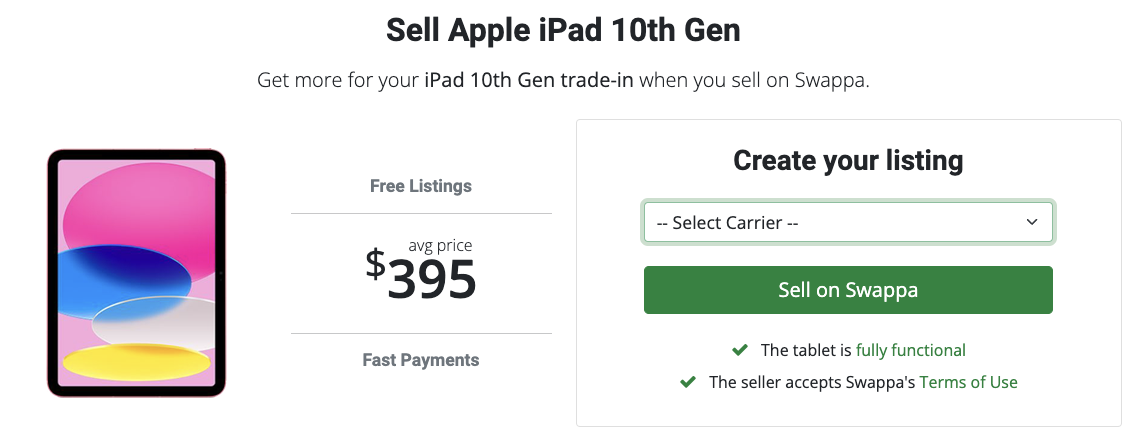
Listing Creation Form
This is the listing creation form. It’s a one-page form composed of four parts:
Product Details – variant information like carrier, storage, color, model
Pricing – set your asking price for your listing. Remember to include the cost of standard shipping in your asking price.
Product Condition – set the condition and describe your listing with a title and description. The iPad will need to meet these listing criteria and condition requirements.
Ship From Information – your shipping ZIP Code and Location (city, state).
Hitting the ‘Submit Listing >>’ button at the bottom of the page will create the listing and assign it a unique listing code. The listing code is used to distinguish your listing from others on Swappa. You’ll create your verification photo using the listing code.
Upload Photos to Your Listing
With your listing created, it’s time to upload photos. The photo upload page is where you will find instructions for taking photos of your iPad. The most important photo you’ll take is the verification photo.
Grab a piece of paper and pen and write down the Listing Code. You’ll use the hand-written listing code in your verification photos to show you have the device in your possession.
The listing code is 4 letters followed by 5 numbers (ex – LYBS58618). You can see an example in the screenshot below.

Note: We do not allow the listing code to be digitally added to verification photos.
Learn more about Verification Photos on Swappa and how they’re used to fight fraud.
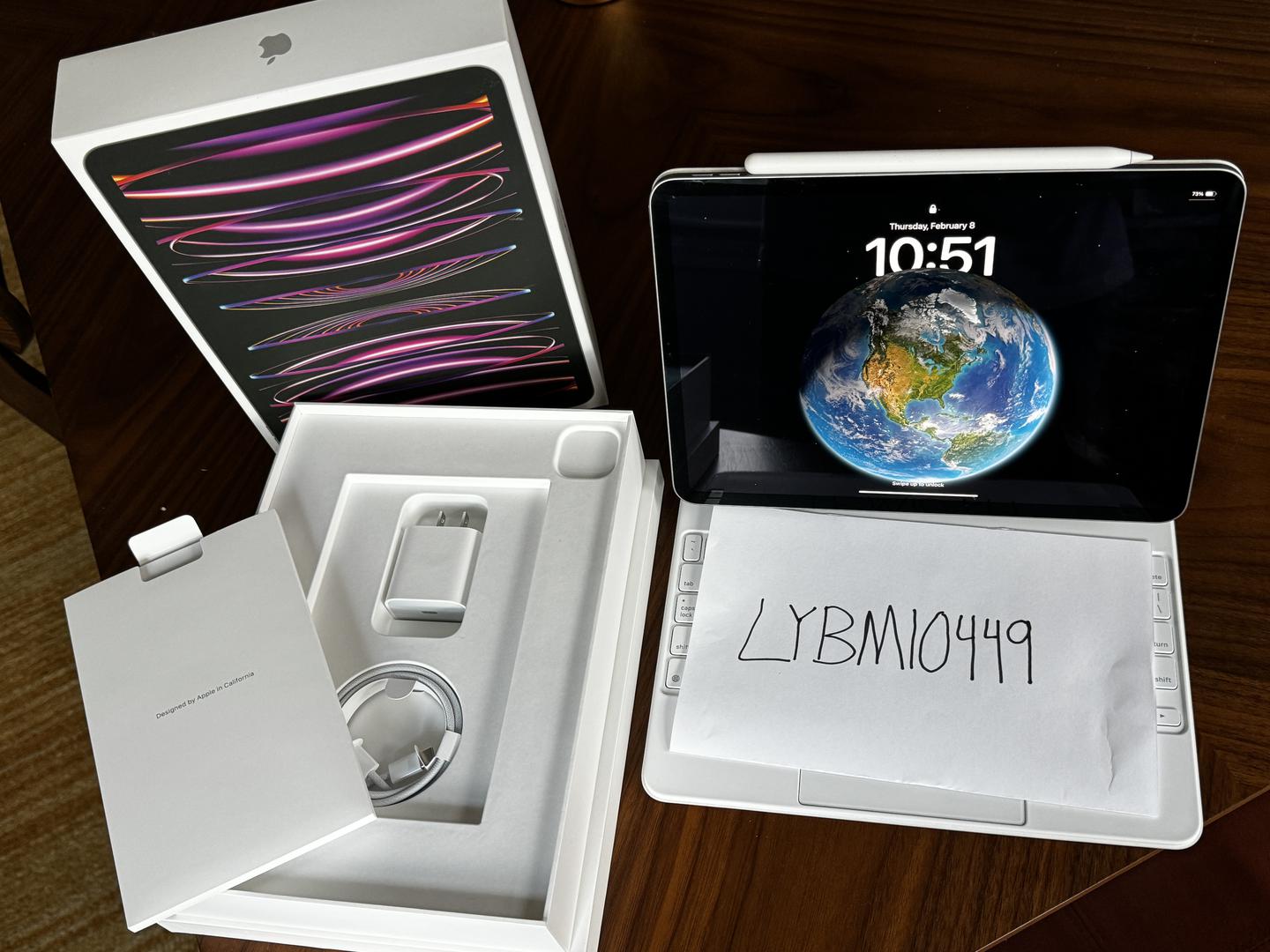
In addition to the verification photo, you’ll want to take photos of the iPad from different angles showing any cosmetic wear. The corners and charge port typically see the most wear from use along with scratching to the screen. It’s important to clearly show any wear to the device in your photos as well as accurately describe them in your damage and listing descriptions.
To get an idea of what kind of photos you should be uploading, browse through other Swappa seller listings. You’ll find examples of great photos and photos that could be improved upon. The more effort you put into making your listing stand out with great photos and descriptions, the faster your listing will sell (assuming it’s priced right). Buyers want to see clean, crisp photos that are well-lit and easy to interpret. They don’t want to make assumptions about the condition.
It’s always a good idea to give your tablet a quick wipe-down before taking photos. If you’re wondering what kind of cloth or cleaning agent you can use on your iPad, check out this article. There’s a list of approved and prohibited cleaning materials.
Inaccurately representing the condition of a device is the number one factor that causes failed sales resulting in refunds or returns.
Don’t be afraid to take a bunch of pictures. Just make sure they are in focus and show any scratches, dings, dents, or other cosmetic issues the iPad may have. Use your zoom to get close-ups and natural lighting or reflections to capture micro scratches to the screen.
Monitor Your Email
After you’ve uploaded your photos, the listing will enter a moderation queue and Swappa staff will moderate the listing. The moderation process is typically between 30 minutes to an hour. Just keep an eye on your email. If you’ve filled in the listing creation form properly and have a valid verification photo, your listing will be approved and you’ll receive an email stating your listing is available for purchase. If your listing needs additional information or the photos aren’t correct, you’ll receive an email from Swappa staff with the requested information or photos.
Your listing is approved and available for purchase by Swappa’s massive community of buyers. What’s next?
Monitor your email – prospective buyers can leave comments and questions on your listing which will be sent to you via email.
When the listing sells, you’ll receive an email congratulating you on the sale with a link to the private sale page.
Adjust your price – check recent sales and try to match the market. If you price your device right, it should sell relatively quickly.
Adjust your listing description – provide additional information about the condition, history, or any other helpful details that will reassure potential buyers that they are getting a quality device.
Add additional photos – missing an angle or were some of the photos a little out of focus or in need of better lighting? Upload more photos to the listing.
Your iPad Listing Sold!
Congrats on the sale! Now comes the fun (or not so fun) part–shipping the iPad in two business days.
Read more about shipping on Swappa
Shipping doesn’t have to be stressful. While it’s often the hardest part about selling something online, there are a few easy steps you can take to make sure your transaction is successful and the iPad arrives safely to your buyer.
Ship on Time – Swappa has a two-business-day shipping window. If there are any delays, make sure to communicate with your buyer by leaving them a comment on the sale page.
Ship with Insurance – you should always include insurance on your packages. You don’t want to be stuck with a multiple-hundred dollar loss because the device was damaged in transit and you didn’t want to pay a couple extra dollars to insure it.
Securely Package the iPad– don’t just throw it in a padded bubble mailer, it will be destroyed by our rough and tumble shipping system. You’ll want to wrap it in some bubble wrap and ship it in a box. If you have the original Apple box, that will help you get it to your buyer safely.
Ship the iPad – If you don’t have a scale or printer at home, you will need to ship your package at USPS, UPS, or FedEx and pay their retail rate. You could also use a pack-and-ship store like a UPS Store or Postal Annex but they often have a markup on their rates. If you do have a scale and printer at home, you can use a company called Pirate Ship to print commercial rate shipping labels for a deep discount. We cover Pirate Ship below.
Upload the Tracking Number – when you ship, upload the tracking number to the private sale page.
Communicate with Your Buyer – keep an eye out for emails from your buyer. If they leave a comment on the private sale page, you’ll be notified via email. If there’s a problem with the transaction, you can communicate with your buyer and Swappa staff on the sale page comment section.
The Secret to Getting Commercial Shipping Rates
Shipping can be expensive. Retail rates for USPS, UPS, and FedEx are substantially higher than the commercial rates that businesses pay to ship packages.
Did you know that you can get commercial shipping rates at no extra cost to you? You can print a cheaper label from home and skip the line at the post office.
Pirate Ship has been around since 2014 and lots of Swappa staff members use them to ship their Swappa sales and birthday and holiday gifts. Don’t let the name fool you. Pirate Ship is a legit company that can save you a ridiculous amount of money.
Check out their article on why you should use Pirate Ship to send your packages.
Signing up for an account is free and you’ll be able to ship your iPad sale via USPS or UPS in no time.