AirDrop is one of those Apple features that feels like magic when it works and a genuine mystery when it doesn’t. You hold up two devices, nothing appears, and you end up texting a file to yourself instead. The fix is almost always one of a small handful of things, and most of them take less than a minute to check.
The Basics: Wi-Fi, Bluetooth, and Visibility
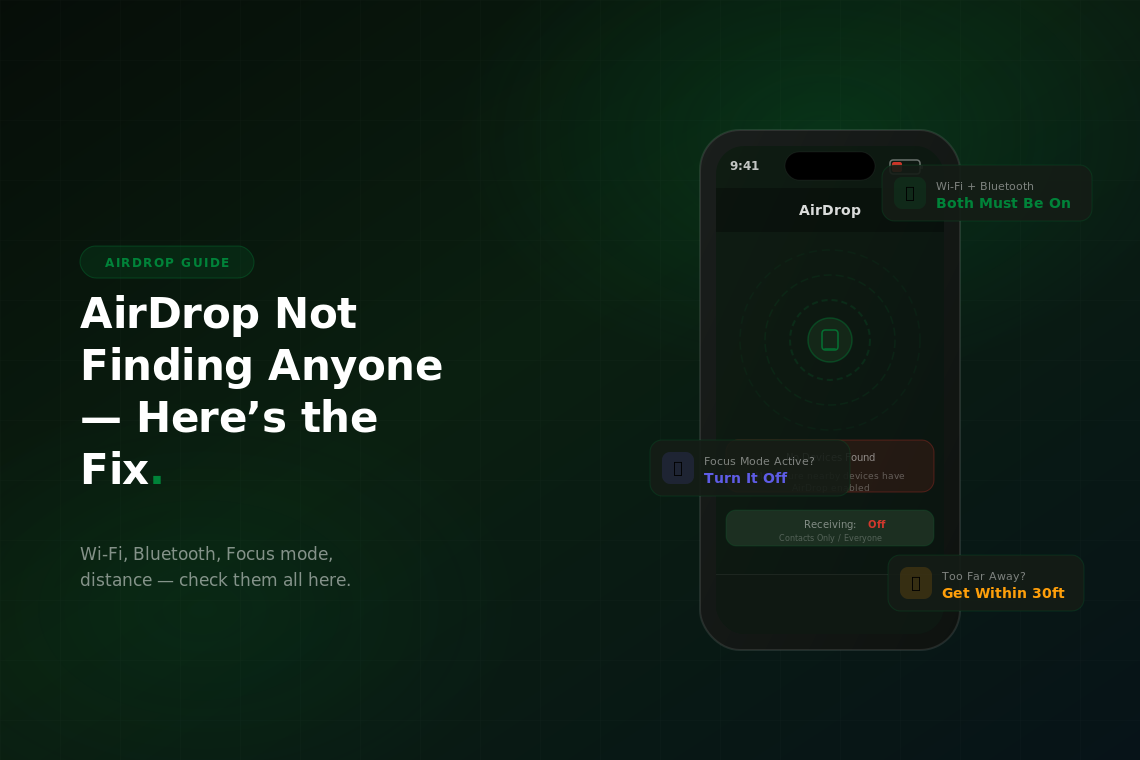
AirDrop requires both Wi-Fi and Bluetooth to be active on both devices — even if you’re not connected to a Wi-Fi network. It uses Wi-Fi for the actual file transfer and Bluetooth for device discovery. If either one is off on either device, AirDrop won’t see or be seen.
Open Control Center on both devices and confirm that Wi-Fi and Bluetooth icons are both lit up (not greyed out). Note that toggling them off from Control Center is different from disabling them in Settings — the Control Center toggle disconnects from networks but keeps the radios active for AirDrop. If you’ve turned them off through Settings, head there to turn them back on properly.
Next, check your AirDrop visibility setting. On the sending device, open Control Center, long-press the network tile in the top-left cluster, and tap AirDrop. You’ll see three options: Receiving Off, Contacts Only, and Everyone. If you’re sharing with someone not in your contacts, you need to be set to Everyone for 10 Minutes (iOS 16.2 and later) or Everyone on older versions. Ask the receiving person to check their setting too — both sides need to be discoverable.
Personal Hotspot can also block AirDrop. If your hotspot is currently active, AirDrop is disabled automatically. Turn off Personal Hotspot, try AirDrop, then re-enable hotspot afterward if you need it.
Distance and Line of Sight
AirDrop has a practical range of about 30 feet, but that’s under ideal conditions. In practice, walls, interference from other Bluetooth devices, and even holding the phone in an unusual orientation can cut that range significantly. The more straightforward approach: get within arm’s length of the other device before trying. AirDrop consistently works better up close.
If you’re in a crowded space — a conference room full of laptops, a coffee shop, an airplane — Bluetooth congestion can make discovery unreliable. This is especially common with the “Contacts Only” setting, which has to cross-reference against your contacts list before showing the device, adding a step that can time out in noisy RF environments. Switching both devices to Everyone temporarily is worth trying in these situations.
Receiving Side Isn’t Showing Up
If your device isn’t appearing for others at all, the first thing to check is whether Do Not Disturb or a Focus mode is active. These modes suppress incoming AirDrop requests. Swipe down from the top right to check Control Center — if a Focus mode icon is lit up, tap it to disable it and try again.
Also confirm the receiving device isn’t locked with the screen off. AirDrop discovery works better when the screen is on and the device is unlocked. This is especially true on older iPhones and Macs. If someone says they can’t see you, ask them to wake their screen and check their AirDrop setting manually via Settings > General > AirDrop rather than Control Center.
On a Mac that isn’t showing up in AirDrop from an iPhone, open Finder and click AirDrop in the sidebar. The Mac needs to have that window open and active to be fully discoverable in some cases. There’s also a “Allow me to be discovered by” dropdown at the bottom of the AirDrop window in Finder — make sure it’s not set to No One.
Transfer Starts But Fails Midway
If AirDrop finds the device, the transfer starts, but then fails or stalls, the issue is usually one of three things: the file is too large for a stable Bluetooth handshake, the devices moved out of range during transfer, or there’s a temporary software glitch on one end.
For large files, keep both devices stationary and close together for the entire transfer. AirDrop doesn’t resume failed transfers — if it drops, you start over. For video files over a few hundred MB, it’s sometimes faster and more reliable to use a cable or cloud sync instead.
If transfers consistently fail regardless of file size, toggle AirDrop off and on on both devices, then try again. If that doesn’t help, a full restart of both devices clears the Bluetooth and Wi-Fi stack and resolves the majority of stubborn transfer failures.
AirDrop to Mac Specifically
Transferring from iPhone to Mac (or vice versa) has a couple of extra requirements. Both devices must be signed into iCloud with the same Apple ID, or the Mac must be set to Everyone in its AirDrop discovery. If you’re using Contacts Only, the iPhone needs to have the Mac owner’s Apple ID email address saved as a contact.
Handoff and Continuity features also need to be enabled for the best results. On your iPhone, check Settings > General > AirPlay & Handoff and make sure Handoff is on. On your Mac, check System Settings > General > AirDrop & Handoff. Both should have AirDrop set to Contacts Only or Everyone.
As a last resort on either device: go to Settings > General > Transfer or Reset iPhone > Reset > Reset Network Settings. This clears Bluetooth pairing history and Wi-Fi state that can occasionally interfere with AirDrop. It’s more disruptive than the other steps since it wipes saved Wi-Fi passwords, but it’s the most thorough software fix available short of a full restore.
When Nothing Works
If AirDrop consistently fails across multiple devices and scenarios, it’s worth checking whether your iPhone is due for a hardware refresh. Older iPhones use older Bluetooth and Wi-Fi chipsets that are more prone to discovery issues, especially alongside newer Apple devices. Used iPhones on Swappa are a practical way to step up to a current model with updated wireless hardware without paying full new price.