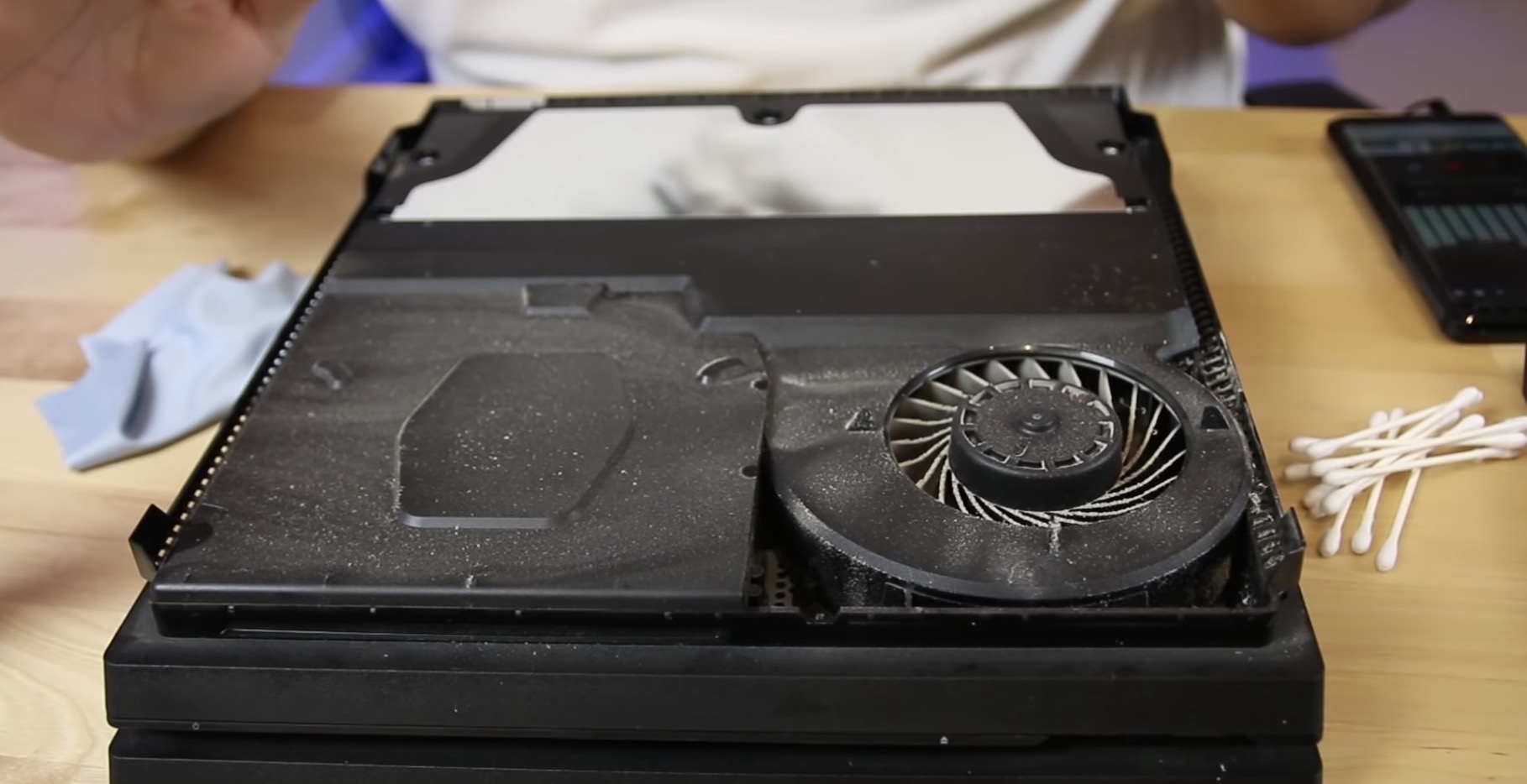
If your PS4 sounds like a jet engine, it is almost certainly full of dust. Every PS4 on the market today is somewhere between 7 and 13 years old, and years of pulling air through its vents coats the fan and heat sink in lint and pet hair. This guide shows how to clean the outside, the fan, and the controller on each PS4 model, which steps need screws, and how to get a PS4 ready to sell.
Quick Answer
Unplug the PS4, then clean the vents with a soft brush and short bursts of compressed air. On a PS4 Slim or PS4 Pro, the top cover pops off by hand with no screws, which lets you clean the fan. The original PS4, and a deep clean of the heat sink on any model, require Torx security screws behind a warranty sticker. Most PS4s need an outside clean every month or two and a fan clean about once a year. If you are upgrading to a PS5, a clean PS4 also sells faster: see used PS4 listings on Swappa for current prices.
Signs Your PS4 Needs Cleaning
A PS4’s fan speeds up as the console gets hotter. Dust makes it work harder to move the same air, so noise is the first warning sign.
- The fan is loud on the home screen or in simple games, not just in demanding ones.
- You can see dust or hair around the side vents or the vent on the back.
- The console shows an overheating warning or shuts itself off during play.
- The air coming out of the back is very hot after only a few minutes.
If your PS4 shuts down even after a thorough cleaning, the problem may be dried-out thermal paste or a failing fan, covered in Step 3 below.
Which PS4 Do You Have?
The cleaning steps depend on the model. You can find the model number on the label on the back or underside of the console.
| Model | Model Numbers | Fan Access | Screws Needed |
|---|---|---|---|
| Original PS4 | CUH-1000 to CUH-1200 | Remove the lower case | Yes: T8 Torx security screws under a warranty sticker |
| PS4 Slim | CUH-2000 series | Pop off the top cover | No, for a fan clean |
| PS4 Pro | CUH-7000 series | Pop off the top cover | No, for a fan clean |
Not sure which model is which? Is the PS4 Still Worth Buying in 2026? compares all three.
What You Need
| For | Tools |
|---|---|
| Step 1: outside clean (every PS4) | Microfiber cloth, soft brush (a clean paintbrush or toothbrush), vacuum with a brush attachment, can of compressed air |
| Step 2: fan clean | Everything above, plus cotton swabs, tweezers, and a toothpick or plastic pry tool to hold the fan still |
| Step 3: heat sink and thermal paste | T8 Torx security screwdriver, Phillips #1 and #0 screwdrivers, thermal paste, 90% or stronger isopropyl alcohol |
Skip household cleaning sprays, wet wipes, and anything that drips. Liquid and electronics do not mix.
Step 1: Clean the Outside (Every PS4)
This takes about 10 minutes and fixes more noise problems than you might expect.
- Power off and unplug. Shut the PS4 down fully (not Rest Mode), unplug the power cable, and let it cool for a few minutes.
- Wipe the case with a dry microfiber cloth.
- Brush the vents. Use a soft brush to loosen dust from the side vents and the rear exhaust.
- Vacuum on low. Run a vacuum with a brush attachment over the vents to pull out what you loosened.
- Blow out what is left. Use compressed air in short bursts, with the can held upright. Tilting or shaking the can can spray liquid propellant.
- Clean the ports. Brush out the HDMI and USB ports with a dry brush or a short puff of air. Never put anything into the disc slot.
Step 2: Clean the Fan (PS4 Slim and PS4 Pro)
On the Slim and the Pro, Sony designed the top cover to come off by hand, which exposes the fan area without touching a screw.
- Unplug everything and lay the console flat on a towel or cloth.
- Remove the top cover. Grip the front corners, pull up until the clips release, then slide the cover toward the back. The Pro’s cover is stiff the first time, so work around the edges rather than forcing one spot.
- Hold the fan still. Rest a toothpick or plastic pry tool against a fan blade. Letting compressed air spin the fan at high speed can damage its motor.
- Clean the blades and surrounding area. Brush each blade, pull out clumps of hair with tweezers, and use cotton swabs in the corners. Then use short bursts of compressed air to push loose dust out of the case.
- Wipe the inside of the cover and snap it back on, starting at the back and pressing down until each clip clicks.
Do not go further than the top cover for a routine clean. The next layer on both models is held by a screw under a warranty sticker, and that is Step 3 territory.
Cleaning the Fan on an Original PS4
The original PS4 has no tool-free cover. To reach the fan, you remove the warranty stickers and three T8 Torx security screws on the back, then lift off the lower case. iFixit’s How to Open and Clean a PlayStation 4 walks through it with photos. The case is held by tight plastic clips, so take your time. If you would rather not open it, a thorough Step 1 clean every few weeks is the safer choice.
Step 3: Deep Clean the Heat Sink and Replace Thermal Paste
If the fan is clean and your PS4 is still loud or still shuts down, the heat sink may be clogged or the thermal paste on the processor may have dried out. Fixing either one means taking most of the console apart. On the Slim, iFixit’s guide removes the power supply, the motherboard, and dozens of screws before the heat sink comes free. Set aside an afternoon.
- PS4 Slim: follow iFixit’s PlayStation 4 Slim Thermal Paste Replacement guide.
- PS4 Pro: iFixit’s PlayStation 4 Pro Fan Replacement guide covers the disassembly.
- Original PS4: start with the iFixit cleaning guide above, then continue to the heat sink.
Sony’s hardware warranty on the PS4 lasted one year, so almost every PS4 today is out of warranty and opening it costs you nothing there. The real risk is damage: a torn ribbon cable or a static shock can turn a noisy console into a dead one. If you are not comfortable with that, a local console repair shop can do this job.
If a PS4 still shuts down after a deep clean, it does not meet Swappa’s listing criteria for a fully functional device. At that point, the money is better spent on a used PS4 Slim (about $114 to $139) or a used PS5.
How to Clean a DualShock 4 Controller
Controllers get grimier than the console. Turn the controller off before you start.
- Wipe the shell with a microfiber cloth lightly dampened with 70% or stronger isopropyl alcohol. Put the alcohol on the cloth, never directly on the controller.
- Clean the seams and buttons with a cotton swab dampened the same way, and run a toothpick along the seams to lift out grime.
- Clean around the analog sticks by tilting each stick fully to one side and wiping underneath.
- Blow out the ports (micro-USB, headphone jack, and extension port) with a short puff of compressed air.
For sanitizing any device safely, including screens and speakers, see How to Safely Clean and Sanitize a Used Device.
How to Keep Your PS4 Clean Longer
Where your PS4 sits matters as much as how often you clean it.
- Keep it off the floor and off carpet, where it pulls in more dust, lint, and pet hair.
- Give it open space. Leave room around the side vents and behind the rear exhaust so hot air can escape. A closed cabinet traps heat, so keep the door open while you play if that is where it lives.
- Dust the area around it when you dust the console.
- Lying flat or standing upright both work, as long as no vent is blocked.
For habits that keep all your devices running longer, see Make Your Tech Last: Care, Repair & Longevity Guide.
Cleaning a PS4 Before You Sell It
GTA VI launches November 19 on PS5 and Xbox Series X|S, not PS4, and many PS4 owners are upgrading this fall. A clean console looks better in photos and runs quieter when the buyer tests it, which helps it sell. On Swappa, a PS4 has recently sold for about $114 to $180, depending on the model:
| Model | Avg. Sale Price on Swappa |
|---|---|
| PS4 (original), 500GB | $133 |
| PS4 Slim, 500GB to 1TB | $114 to $139 |
| PS4 Pro, 1TB | $180 |
Swappa average sale prices as of September 23, 2026. Check the live PS4, PS4 Slim, and PS4 Pro price pages before you list.
Before you list, do three things beyond cleaning:
- Move your saves to your PS5, a USB drive, or PS Plus cloud storage.
- Deactivate the console as your primary PS4, then run a full initialization so it boots to the setup screen. For wiping any device before a sale, see How to Wipe Your Device Before Selling.
- Test the disc drive and controller so you can describe them accurately.
Photograph the console after cleaning, in good light, with every accessory you are including. How to Photograph Electronics for Listings has the details, How to Sell a Used Console and Games for the Most Money covers pricing, and How to Ship a Gaming Console Safely (and for the Best Price) covers packing. If you removed a warranty sticker during a deep clean, say so in the listing.
Listing on Swappa is free. Sellers pay a 3% seller fee plus payment processing (PayPal is 3.49% + $0.49), which is lower than auction-site fees, and real people approve listings before they go live.
Just Bought a Used PS4?
Give it a Step 1 clean and wipe down the controller before you set it up. Then listen to it: a fan that stays loud on the home screen after cleaning is worth raising with the seller quickly. How to Inspect a Used Console Before You Buy lists what else to check in the first few days.
Frequently Asked Questions
How often should I clean my PS4?
Clean the outside vents every month or two, and more often if you have pets or the console sits near the floor. Clean the fan about once a year, or sooner if it gets loud. A heat sink and thermal paste job is only needed if the PS4 stays loud or overheats after the fan is clean.
Can I clean a PS4 without opening it?
Yes. Brushing the vents, vacuuming them on low, and using short bursts of compressed air removes a lot of dust without any disassembly. On a PS4 Slim or PS4 Pro, removing the top cover takes no tools and gives better access to the fan.
Does opening a PS4 void the warranty?
Removing the screw-free top cover on a PS4 Slim or PS4 Pro does not break any seal. Going deeper means removing a warranty sticker, which would void Sony’s warranty. Sony’s PS4 warranty lasted one year, though, so almost every PS4 in use today is already out of warranty.
Is compressed air safe to use on a PS4?
Yes, if you use it carefully. Unplug the console, hold the can upright, and use short bursts. Hold the fan still with a toothpick or plastic tool so the air does not spin it too fast, and never tilt or shake the can, which can spray liquid propellant.
Why is my PS4 still loud after cleaning?
The dust may be packed into the heat sink, which a fan clean does not reach, or the thermal paste on the processor may have dried out after years of use. Both require taking most of the console apart. A PS4 Pro is also naturally louder than a Slim in demanding games.
Is cleaning a PS5 the same as cleaning a PS4?
It is easier. The PS5’s side covers slide off by hand and expose two dust catcher holes that you can vacuum, a feature Sony built in for cleaning. You do not need to remove any screws for routine dust cleaning on a PS5.
The Bottom Line
Most loud PS4s just need a cleaning. Start with the outside vents, pop the top cover off a Slim or Pro to clean the fan, and only open the case fully if the noise or overheating comes back. If you are moving to a PS5, clean it, reset it, and list it before the GTA VI rush.