Before you can sell your iPhone on Swappa or even give the phone away, there’s a little prep work that should be done beforehand. One of the most important things you can do is back up all of your phone’s data. Should you decide to purchase a new iPhone somewhere down the road, having a saved backup will allow you to restore all of your old data like your contacts, photos, apps, and games.
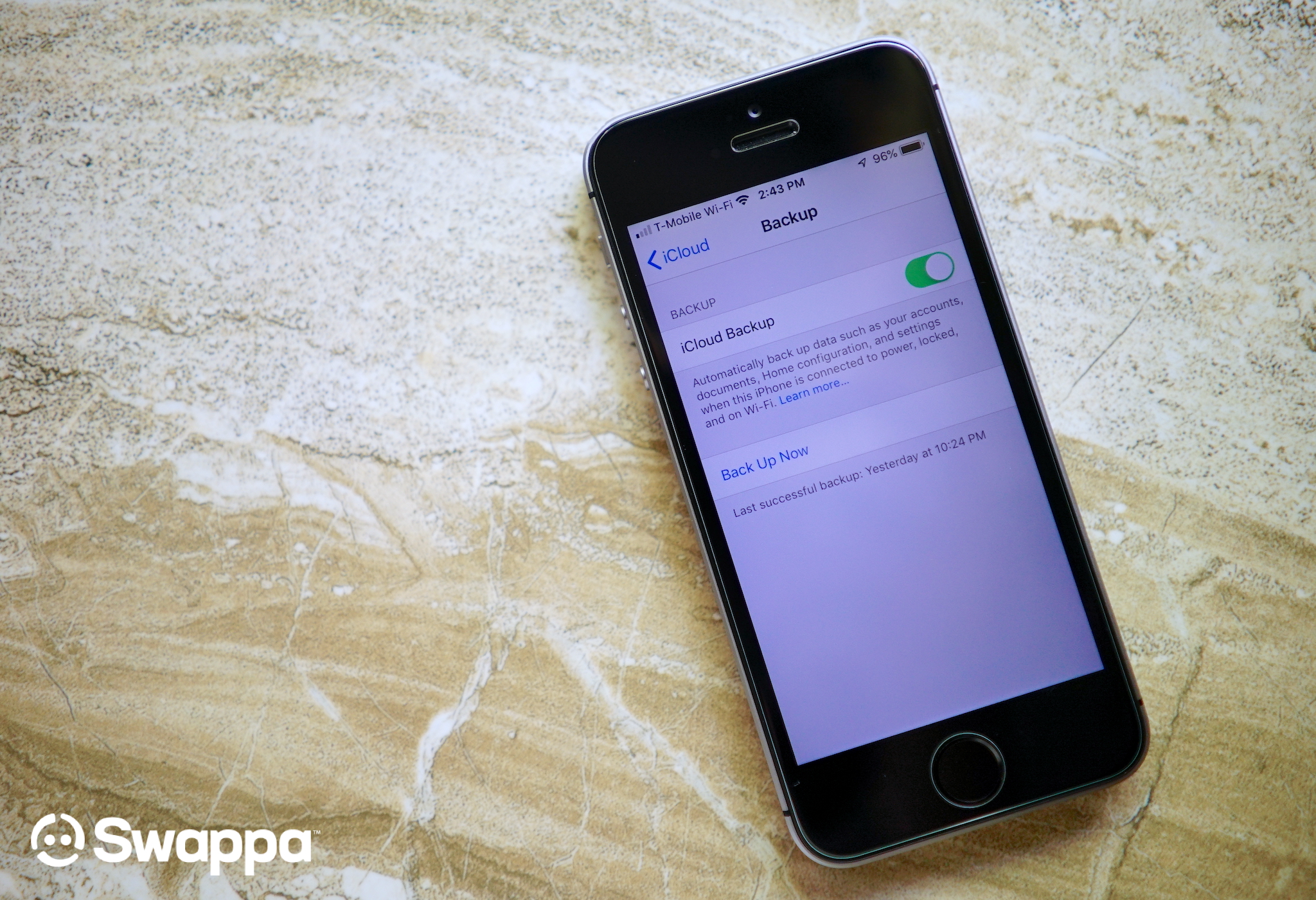
There are two ways to backup the data on your device. The first is by using iCloud to upload and store your data in the cloud. iCloud is more convenient but it’s easy to fill up the free 5GB Apple provides you with unless you’re paying monthly for upgraded cloud storage.
The second option is to back up your data to your computer. This is done using iTunes (PC or Mac) to back everything up. Whichever method you decide on going, here are the steps for each:
Backup your iPhone using iCloud

- Connect your iPhone to a WiFi network
- Open the Settings app
- Tap on your name (or iCloud for devices running 10.2 or earlier)
- Tap on iCloud Backup
- Tap Back Up Now
- Wait for the process to complete
Backup your iPhone using iTunes

- Open iTunes on your computer and connect to your iPhone using the USB cable.
- You may see a message asking for your iPhone’s passcode or to Trust This Computer (follow the onscreen steps).
- Select your iPhone when it appears in iTunes.
- To save Health and Activity data from your iOS device, you’ll need to encrypt your backup by selecting Encrypt iPhone backup and create a password by writing it down someplace safe. Without it, you wont be able to restore your iTunes backup. If Health and Activity data isn’t important, skip this step and move onto the step #5.
- Click Back Up Now.
- Wait for the backup to complete before disconnecting your device (Latest Backups will show current time/date).
Perform a factory reset
If you’re looking to sell, pass down, or send your iPhone off for repairs, you’ll need to reset the device to its factory settings first. This will keep your personal data safe by wiping your phone clean of any and all personal data. For steps on doing that, check out our entire walkthrough linked below.
Read more: How to factory reset my iPhone
Snag the best deals on used iPhones wherever you go. Download the Swappa App today!