Most iPhone users have a home screen situation that can be described as “fine enough.” Apps scattered across four pages, a folder called “Misc” with 47 things in it, and at least three apps they swear they deleted but keep finding. iOS has gotten significantly better at organizing apps over the years, but it still puts most of the work on you — and most people never take the time to actually set things up. Here’s how to do it properly.
Start With Jiggle Mode
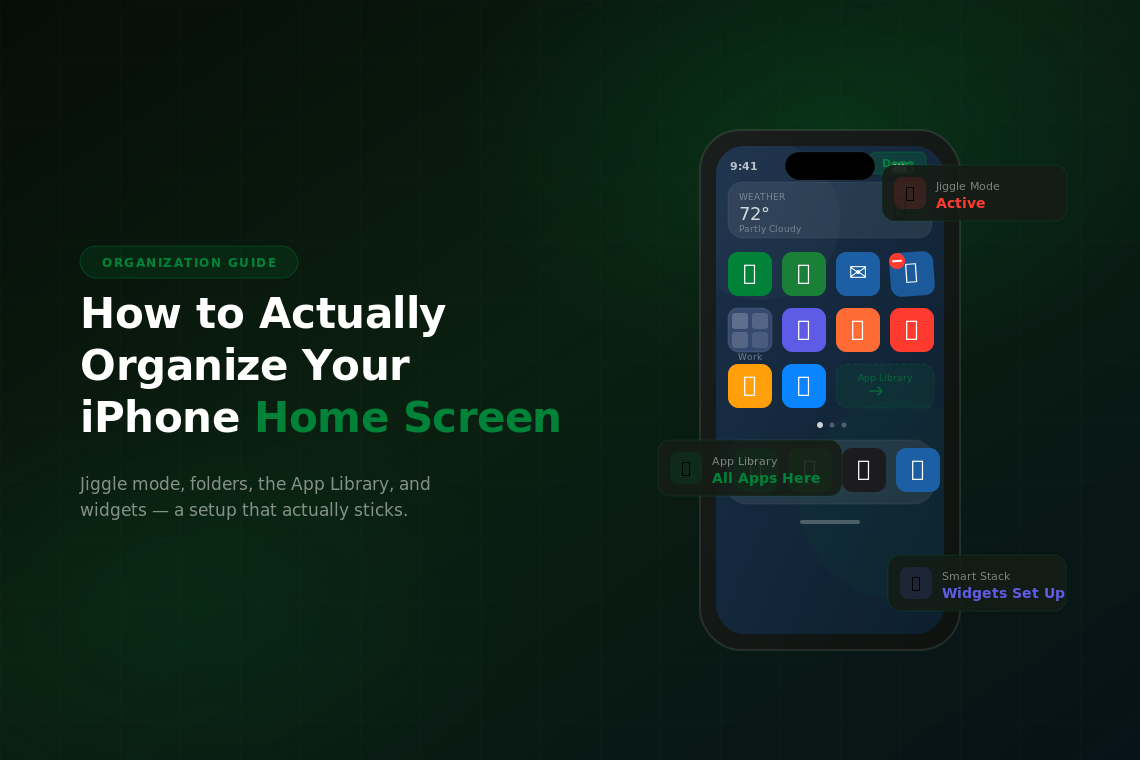
Everything on your home screen is controlled through jiggle mode. Long-press on any empty space on your home screen (or long-press any app icon) until the icons start wiggling. From here you can drag apps anywhere you want — to a different position on the same page, to a different page entirely, or on top of another app to create a folder.
Dragging to a different page is the part that trips people up. When you pick up an app and drag it to the edge of the screen, it scrolls to the next page. Hold it there for a second and the page will flip. It’s slow and a little awkward, but it works. If you’re moving a lot of apps at once, a faster method is to pick up one app, then tap other apps with a second finger to stack them — you’ll be carrying a pile of apps that you can drop together onto a new page or folder.
To delete an app, tap the small – icon that appears in the top-left corner of the icon while in jiggle mode. This removes it from your home screen. If you want to delete it entirely from your phone, tap Delete App in the confirmation prompt. If you only want to remove it from the home screen without uninstalling it, tap Remove from Home Screen — it’ll still be accessible through the App Library.
When you’re done arranging, tap Done in the upper right corner, or press the side button.
Use Folders the Right Way
Folders are the most common organizational tool, but most people use them badly — creating a “Social” folder with 20 apps in it, which is no better than having those apps loose on a page.
The sweet spot is folders with 5–9 apps each. That’s small enough that you can see all the icons at a glance without scrolling inside the folder. Group by actual usage pattern, not by category. “Every Morning” (alarm, weather, news, coffee order app) is more useful than “Tools” because it maps to how your brain actually works when you reach for your phone.
To create a folder, drag one app on top of another in jiggle mode. iOS will automatically suggest a name based on the app category — you can keep it or tap the name field to type your own. To rename a folder later, long-press it in jiggle mode and tap the name at the top.
One folder that’s genuinely worth having: a folder on your first home screen page with just four slots filled, leaving the dock area to your four most-used apps. If you keep your first page tight — only the apps you use every single day — you’ll rarely need to go to page two at all.
Stop Ignoring the App Library
The App Library was added in iOS 14 and it’s one of the most underused features on the iPhone. Swipe left past all your home screen pages and you land in the App Library — a full, automatically organized view of every app on your phone, sorted into smart categories like Recently Added, Suggestions, and type-based folders.
The real utility is the search bar at the top. Tap it and start typing any app name. It finds the app instantly, regardless of which page or folder it’s buried in. For the apps you use occasionally but not enough to want on your home screen, the App Library means you never have to search through pages to find them.
You can also move apps off your home screen and into the App Library without deleting them. In jiggle mode, tap the – icon and choose Remove from Home Screen. The app stays installed and accessible via the App Library, but it stops cluttering your pages. This is the single biggest decluttering move most people haven’t made.
If you’d rather skip the home screen pages entirely and just use the App Library as your primary launcher, you can. Go to Settings > Home Screen and select App Library Only under New Apps. New apps you download will go straight to the App Library instead of adding a new icon to your home screen.
Customize With Widgets
Widgets let you see information from apps without opening them — weather, calendar events, battery level, recent messages. Long-press on any blank area of your home screen to enter jiggle mode, then tap the
Widgets let you see information from apps without opening them — weather, calendar events, battery level, recent messages. In jiggle mode, tap the + icon in the top-left corner to open the widget picker. You can add small (2×2), medium (4×2), or large (4×4) widgets, and they go into the same grid as your app icons.
The trick with widgets is to be selective. One or two widgets on your main home screen page is a convenience. Eight widgets across three pages is just a different kind of clutter. The most useful home screen setup for most people is a tight first page with only their most-used apps, a weather or calendar widget, and nothing else.
You can also create a Smart Stack — a stack of multiple widgets in a single slot that rotates based on time of day and your usage patterns. Add a few widgets, then drag one on top of another to stack them. iOS rotates through them automatically, showing your calendar in the morning, your activity rings in the afternoon, and so on.
Lock Your Layout
Once you’ve got things set up the way you want, you can prevent apps from rearranging themselves. By default, iOS moves apps around to fill in gaps when you delete something, which undoes all your careful organization.
Go to Settings > Home Screen and make sure nothing is set to auto-rearrange. The relevant toggle here is how new apps are handled — set this to App Library Only if you don’t want every new download appearing as an icon on your home screen.
If your organizational frustrations go deeper than just the home screen — if you’re working with an older, slower phone where everything feels like a fight — it might be time to look at an upgrade. Used iPhones on Swappa are a solid option: every listing is verified functional, and you can often move up a generation or two for a few hundred dollars, getting a faster phone with more storage to actually put things on.