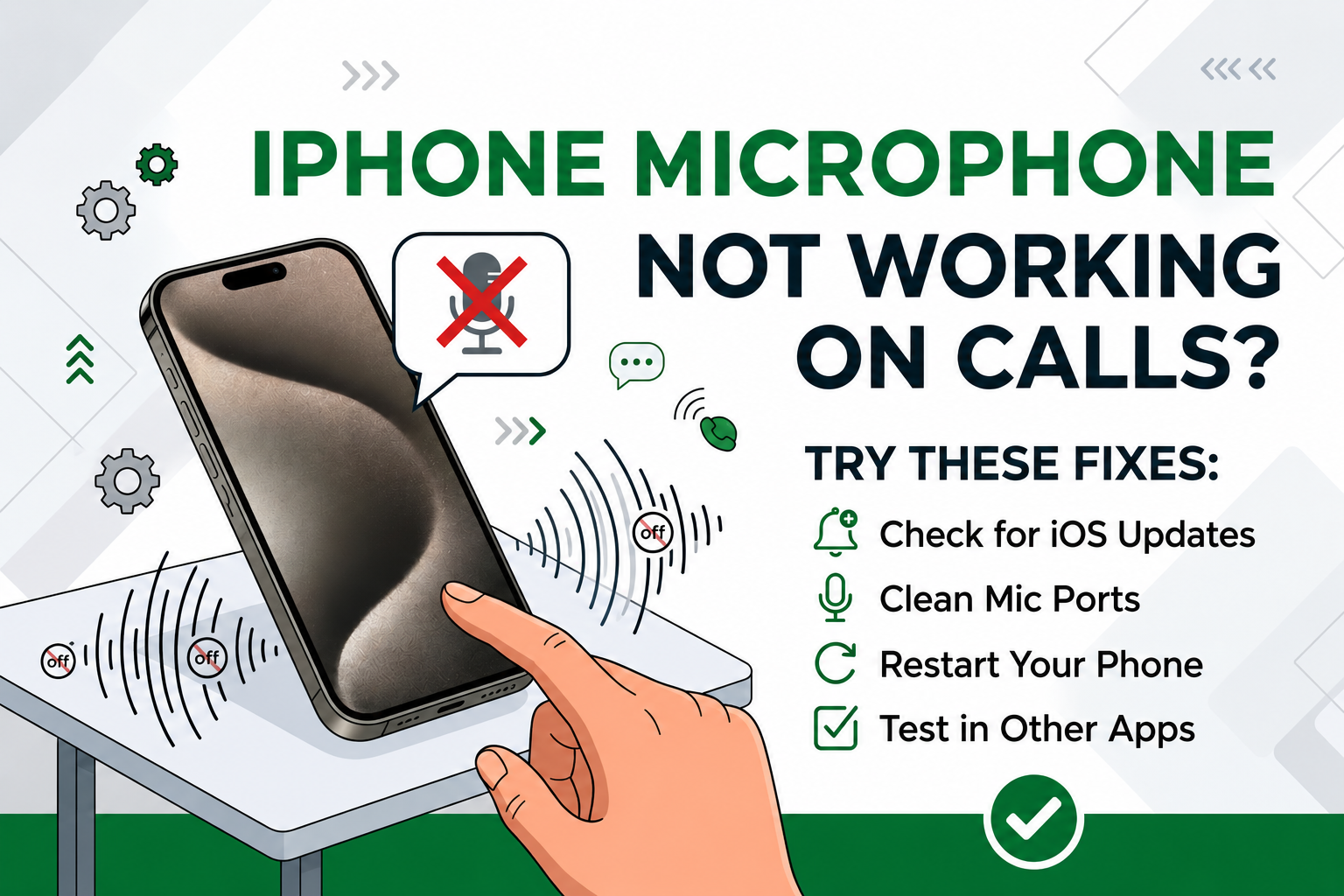
The person on the other end can’t hear you, or your voice cuts out or sounds muffled. It is one of the more frustrating iPhone problems because you usually don’t know it is happening until someone tells you. The cause is almost always a blocked microphone, a setting, or an app or Bluetooth device grabbing the audio, and you can track it down in a few minutes.
This guide is part of Common iPhone Problems and How to Fix Them. Work through the fixes in order.
Quick Answer
Take off the case and screen protector, gently brush the microphone openings with a soft, dry brush, and disconnect any Bluetooth audio devices. Then restart the iPhone and install the latest iOS 27 update. If the problem only happens in one app, check Settings > Privacy & Security > Microphone. If Apple’s Voice Memos and camera tests still sound muffled after all that, the microphone probably needs service. If repair doesn’t make sense, shop used iPhones on Swappa.
Find Out Which Microphone Is the Problem
Your iPhone has more than one microphone: one at the bottom near the charging port, plus microphones at the top front and on the back. Different calls and apps use different ones, so start by testing each, the way Apple recommends:
- Bottom microphone: open Voice Memos, record yourself speaking toward the bottom of the iPhone, then play it back.
- Top and rear microphones: open the Camera app, record a short video while speaking toward the top of the iPhone, and play it back.
- The other camera: switch to the other camera, record another video while speaking toward the top, and play it back.
You should hear your voice clearly every time. If all three tests sound fine, the hardware is probably OK and the problem is a setting, an app or a Bluetooth device. If one test sounds muffled or silent, that microphone is blocked or failing, so start with the cleaning step below.
Remove the Case and Screen Protector, Then Clear the Openings
Apple’s first step is to remove any screen protector, film or case, because they can cover a microphone opening. Cases that sit tight around the bottom edge are common culprits.
Next, look at the microphone openings and gently clear lint and debris with a clean, soft, dry brush. Don’t use pins, anything wet, or compressed air, which Apple advises against because it can push debris further in or damage the parts. Check the top earpiece area too, since debris there can affect both what you hear and how the top microphone picks up your voice.
Disconnect Bluetooth Audio Devices
This one catches a lot of people. If AirPods, a headset or your car is connected, your iPhone may be sending call audio to that device’s microphone instead of its own. AirPods sitting in an open case nearby can do it too. If your AirPods are the ones picking up your voice and you sound muffled, it may be time to clean your AirPods.
During a call, tap the audio button and choose iPhone. To rule Bluetooth out completely, open Control Center or Settings > Bluetooth, turn Bluetooth off, and make a test call. If your headset or car keeps dropping the connection, see how to fix Wi-Fi, Bluetooth, and cellular drops.
Check Mic Mode During a Call
Mic Mode changes how your iPhone processes your voice. During a call, swipe down from the top-right corner to open Control Center, tap the controls for the app you are using, and choose a Mic Mode under Audio & Video:
- Standard: normal voice processing.
- Voice Isolation: prioritizes your voice and blocks background noise. On regular phone calls it needs iOS 16.4 or later. It helps in noisy places.
- Wide Spectrum: leaves surrounding sound unfiltered. It is not available on regular phone calls, but it can be selected in FaceTime and some third-party apps. If you sound distant or noisy on a FaceTime or WhatsApp call, switch back to Standard or Voice Isolation.
- Automatic: on iOS 18 and later, your iPhone picks the best mode for the call.
Check the App’s Microphone Permission
If one app is the problem, for example FaceTime works but WhatsApp calls are silent, that app may not have microphone access. Go to Settings > Privacy & Security > Microphone and make sure the app is turned on. If the permission is on and the app still can’t hear you, Apple suggests contacting the app’s developer.
Restart Your iPhone
A lot of audio problems come from a process that got stuck, and a restart clears it. Press and hold the side button and either volume button until the slider appears, slide to power off, wait 30 seconds, and turn the iPhone back on. Then repeat the Voice Memos test.
Update to the Latest iOS
Apple fixes audio bugs in software updates. Go to Settings > General > Software Update and install anything available. iOS 27, released September 14, 2026, runs on the iPhone 11 and newer and the iPhone SE (2nd generation) and newer. If your iPhone is too old for current iOS updates, see How Long Will a Used Phone Get Updates? to understand what that means for security and apps.
Reset All Settings
If the microphone works in some situations and not others and you can’t find the cause, reset your settings. Go to Settings > General > Transfer or Reset iPhone > Reset > Reset All Settings. Your apps, photos and data stay put, but settings return to their defaults, including network, location and privacy settings, so you will need to rejoin Wi-Fi networks afterward.
Is It the Microphone or the Speaker?
If they can’t hear you, it’s usually the microphone. If you can’t hear them, it’s the earpiece or speaker. Speaker and sound problems have their own fixes, covered in iPhone Sound Not Working? Speaker Fixes That Help.
When It’s a Hardware Problem
If every software fix is done and Apple’s tests still sound muffled or silent, the microphone itself is likely damaged. Drops, liquid and plain wear can all do it. If the phone has been wet, stop and read iPhone Water Damage: What to Do (and Not Do) before trying anything else.
At that point you have three sensible paths:
- Repair it. Apple and authorized repair shops can replace microphone components. Get a quote first.
- Weigh the repair against the phone’s value. On an older iPhone, a repair can cost a big share of what your iPhone is worth. Repair vs Replace: When Fixing Tech Is Worth It shows how to do the math.
- Replace it. A phone with a broken microphone can still be worth money through Swappa Trade-In, where partners buy damaged phones at a lower price than working ones. Then pick up a verified used replacement. The Used iPhone Buyer’s Guide: Every Generation Ranked (2026) and our guide to which iPhone suits your needs help you choose.
Frequently Asked Questions
Why can’t people hear me on my iPhone calls?
The most common causes are a case or screen protector covering the microphone, lint in the microphone openings, a Bluetooth device taking over the call audio, or an app without microphone permission. Test each microphone with Voice Memos and the Camera app to see whether the hardware is working.
How do I test my iPhone microphone?
Record a Voice Memo while speaking toward the bottom of the iPhone to test the bottom microphone. Then record short videos with the front and rear cameras while speaking toward the top of the iPhone. Play each back. You should hear your voice clearly in all three.
Can a case or screen protector block the iPhone microphone?
Yes. Apple’s first troubleshooting step is to remove screen protectors, films and cases, because they can cover the microphone openings. If your voice sounds clear after you take the case off, the case is the problem.
Where is Mic Mode on iPhone?
During a call, swipe down from the top-right corner to open Control Center, tap the controls for the app, and choose a Mic Mode under Audio & Video. On regular phone calls you can use Standard or Voice Isolation. Wide Spectrum is only available in FaceTime and some third-party apps.
Is it worth fixing a broken iPhone microphone?
It depends on the repair quote and the phone’s age. On a recent iPhone, a repair usually makes sense. On an older one, trading in the damaged phone and buying a verified used replacement can cost less than the repair.
Start With the Two-Minute Checks
Most iPhone microphone problems on calls come down to something simple: a case, a bit of lint, a Bluetooth device or a setting. Start with Apple’s quick tests and the cleaning step, and you will know within minutes whether you are dealing with a fixable glitch or a hardware repair.
If it turns out to be hardware and the repair isn’t worth it, you don’t have to overpay for a new phone. Swappa staff review listings before they go live, and payments run through PayPal with buyer protection.