Whether you’re running a high volume, used tech refurbishing business or just have an old phone that you want to get rid of, Swappa is the place to sell it. We have low fees and a ravenous community of buyers who want your device. In this article, we’ll briefly cover creating a listing on Swappa.
Creating a listing on Swappa is free. You only pay a small fee to Swappa when your listing sells and a small fee to PayPal for processing the financial transaction.
If you’ve never sold on Swappa, we encourage you to give it a try. Listing is very easy and you’ll have your old phone, tablet, or laptop live on the Swappa Marketplace in no time.
What You’ll Need
- A Swappa account – registration is free and will only take a minute.
- A PayPal account – Swappa uses PayPal to process transactions.
- A digital camera – you can use a smartphone or any other digital camera.
- Pen and paper – you’ll need to write down a unique code during the listing creation process.
If you don’t have a Swappa account – Register for one through this link. Be sure to confirm your account registration through the link sent to your email.
The next step after creating your Swappa account is tying it to your PayPal account. This will allow you to receive payments for your sales.
Create Your Listing
Now it’s time to create your listing. Here’s the listing process in one sentence. You find your device in our catalog, fill out a one-page listing form, and upload photos including a verification photo showing you have the device in hand.
Swappa’s marketplace uses a product catalog system. Use the big search bar at the top of the Swappa homepage to find your device or you can browse through the different product categories until you find it.
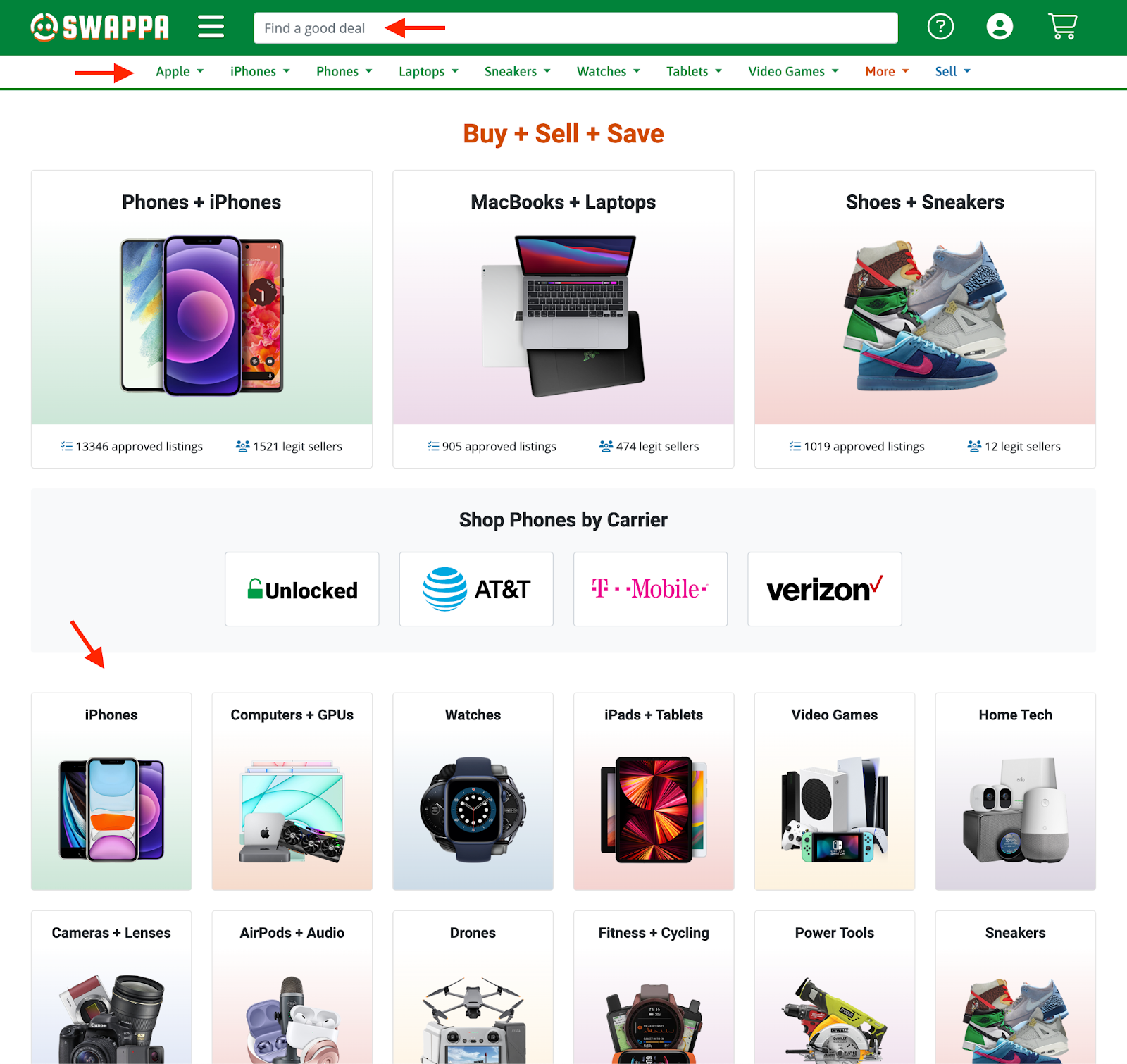
There will be a ‘Sell This’ link on the product page that will start the listing creation process. It looks like this:
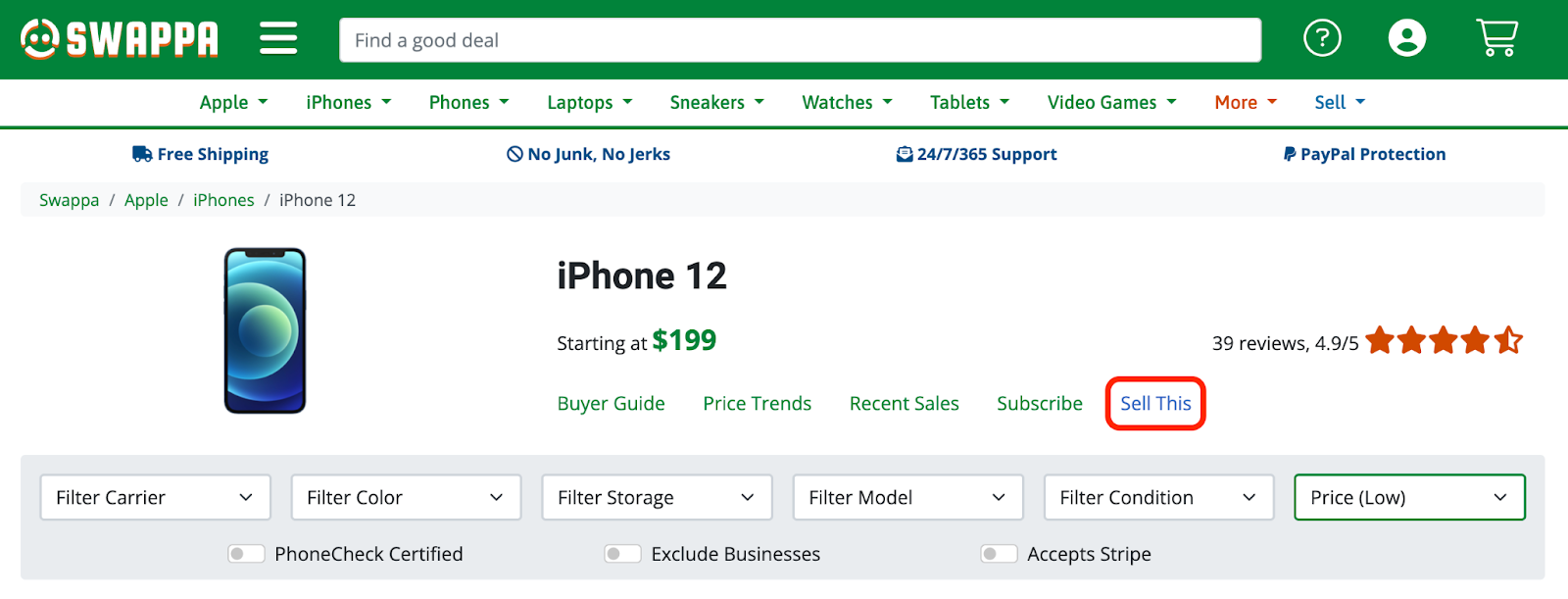
Please note: if the product is not in our catalog, you won’t be able to list it and will need to email us to add it to the catalog.
Listing Creation Form
You’re now on the listing creation page. There are five sections on the single page form:
- Product Details
- Pricing
- Device ESN or IMEI
- Product Condition
- Shipping
Product Details
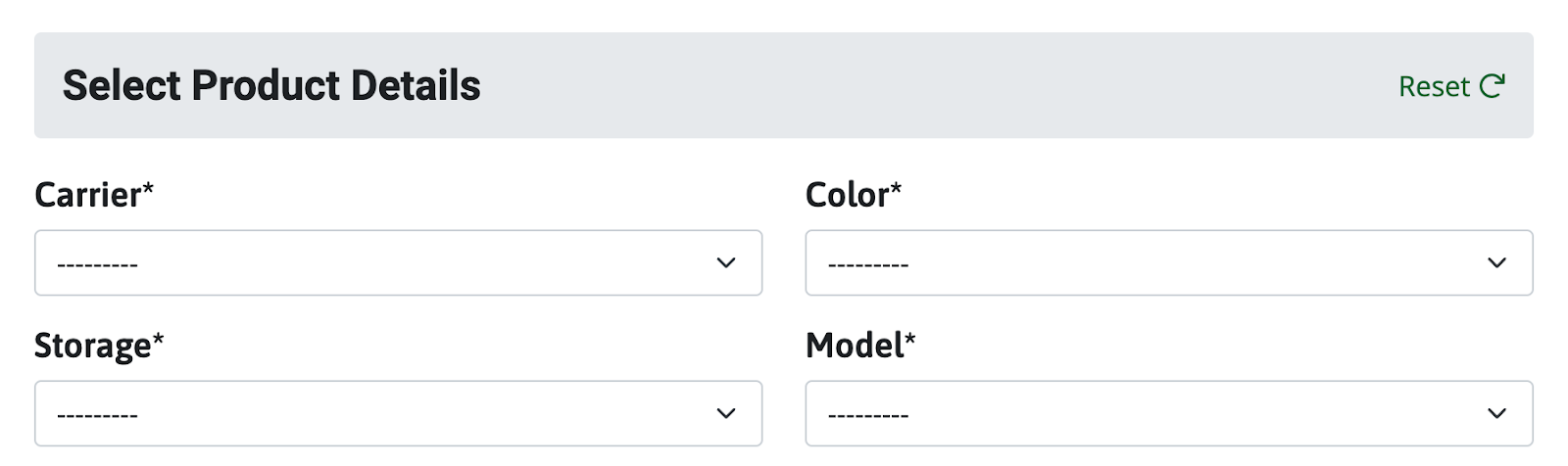
This section contains the variant information for the device. It may simply be a color or edition or in the case of a phone, it will have Carrier, Color, Storage, and Model. Use the dropdown field to populate the product details.
Setting a Price
Set your asking price for the listing. This is the price you will receive minus the Swappa seller fee and the PayPal transaction fee. When entering the price, please take into account the cost of shipping the device. The price of standard shipping should be included in your listing ask price.
Read more about how Swappa fees work.
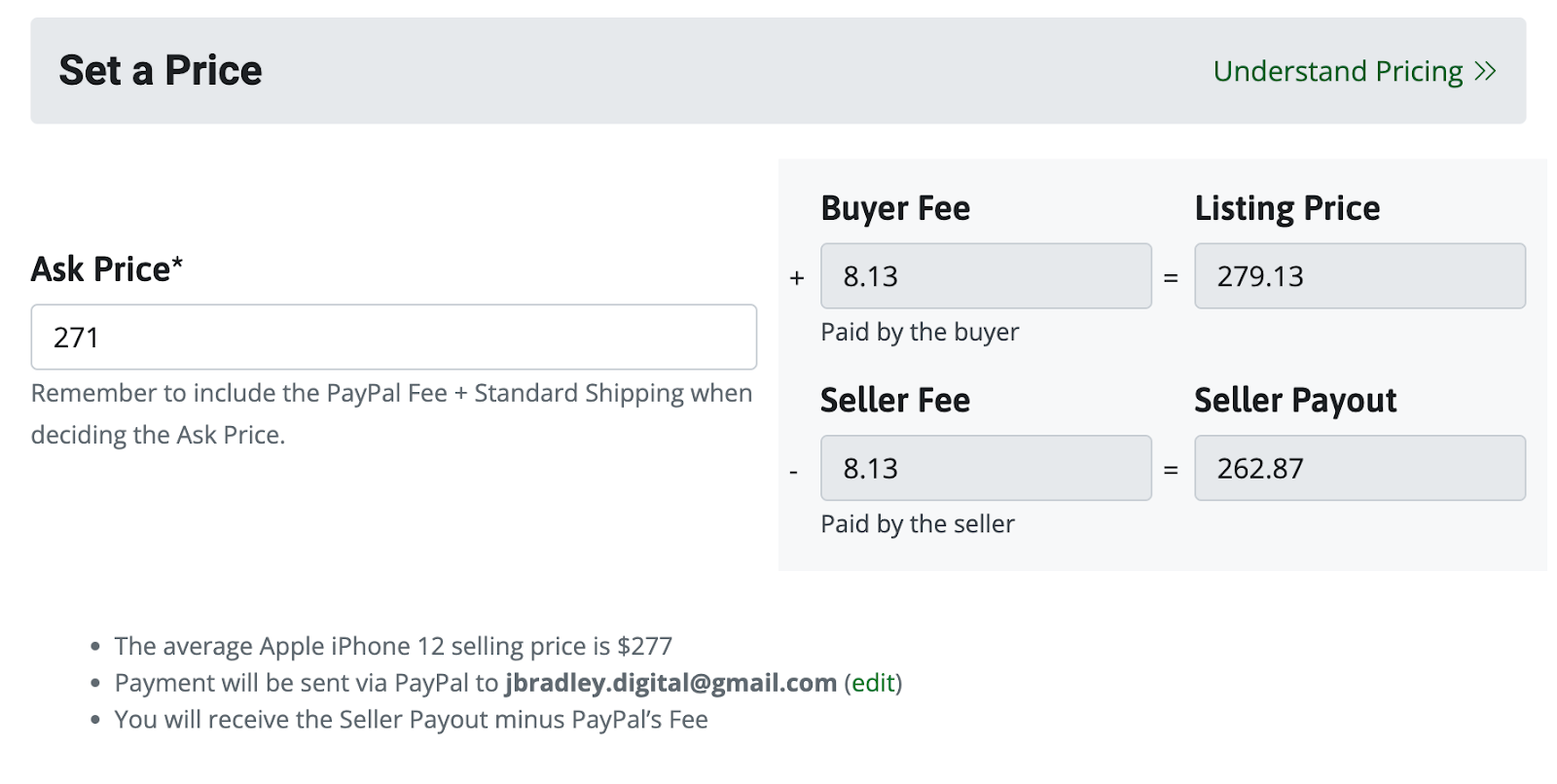
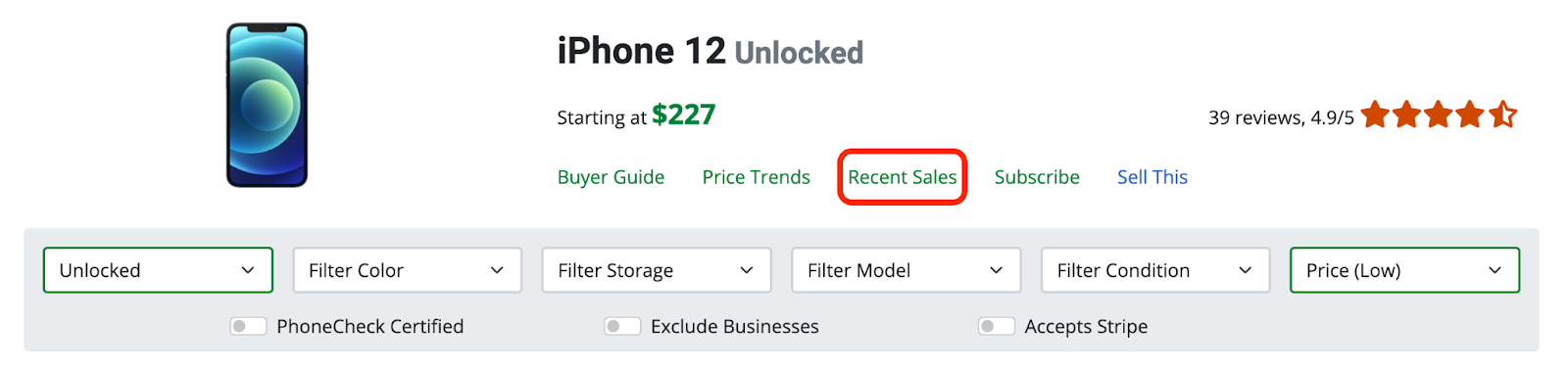
If you’re not sure what to ask for your device, check existing listings that match your product details to see what other people are selling it for. You can also check recent sales on Swappa to see the prices other Swappa sellers got for their listings. The ‘Recent Sales’ can be viewed on the product listings page. It looks like this:
Device ESN
Just before the condition section, you will see a Device ESN field. ESN or electronic serial number is a unique number that manufacturers assign to their devices. This is the field where you will enter the serial number of the device or in the case of a cellular-capable device, you will enter the IMEI (International Mobile Equipment Identity) number.

Please note: you should not show the IMEI number in any listing photos.
If you need help finding the ESN or IMEI visit our How can I locate the IMEI / Serial Number for my device? FAQ page
Product Condition
This section includes the condition, listing title, and listing description. Swappa listings have four main conditions: New, Mint, Good, and Fair. These conditions are outlined in our listing condition guidelines. Please read over the condition guidelines before listing your device to avoid any delay in listing approval.
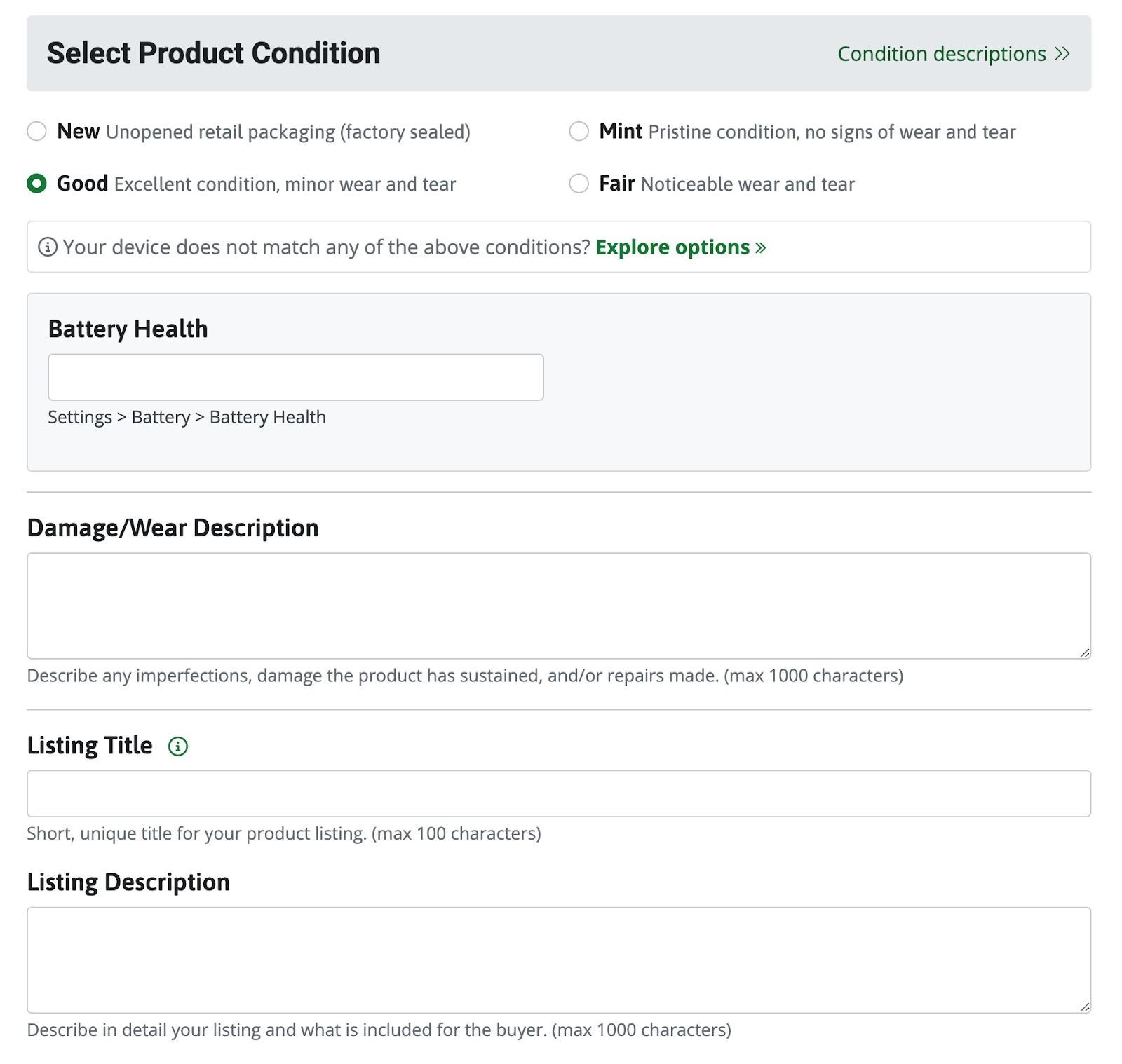
As a general rule, a new condition is never used in the original sealed factory packaging, and mint condition devices must show zero signs of wear. It’s important to properly select the condition for your listing. If you list a good condition device as mint, you won’t have a happy buyer. Save yourself the heartache and select the condition accurately when creating your listing.
We do have some product categories that only have New and Used conditions.
If you select Good or Fair condition, you will be required to provide a damage/wear description. This description should include an account of any wear to the device including scratches, dings, or repairs like a screen or battery replacement.
The listing title is a short 100 character field that describes the essence of your listing.
The listing description has a limit of 1000 characters and should include any information about your listing that you feel is relevant to your prospective buyers. It should re-iterate any condition issues the device may have as well as include a list of what is included (ie charger, cases, etc).
Shipping
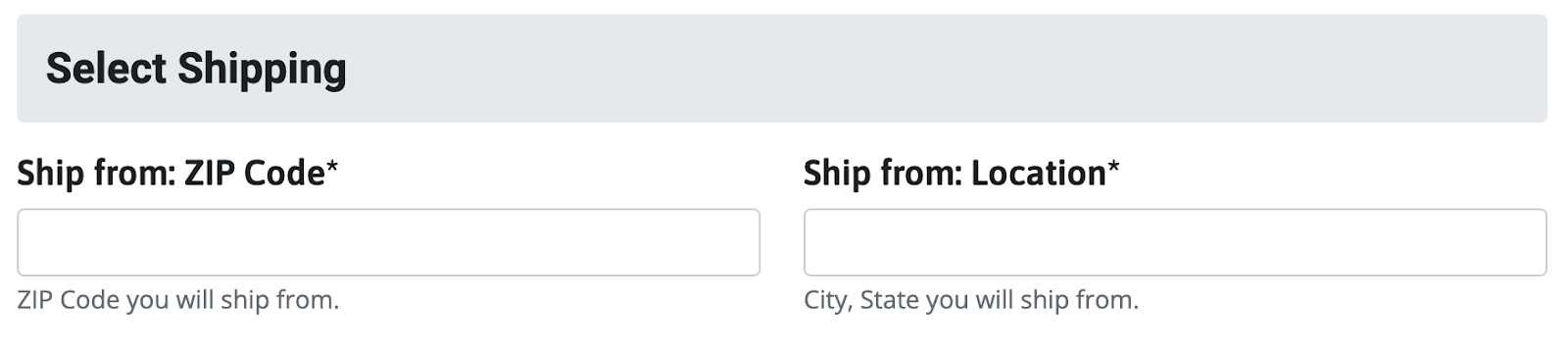
A simple zipcode and ship from location so we can show buyers where you will be shipping the device from. You should enter your city and state in the location field. Please do not enter your full address.
Have shipping questions? Checkout our Shipping Page
Finalize the Listing Form
Congratulations! You completed the listing creation form. Hit the big green Submit Listing button to move on to the photo upload page.
Upload Photos
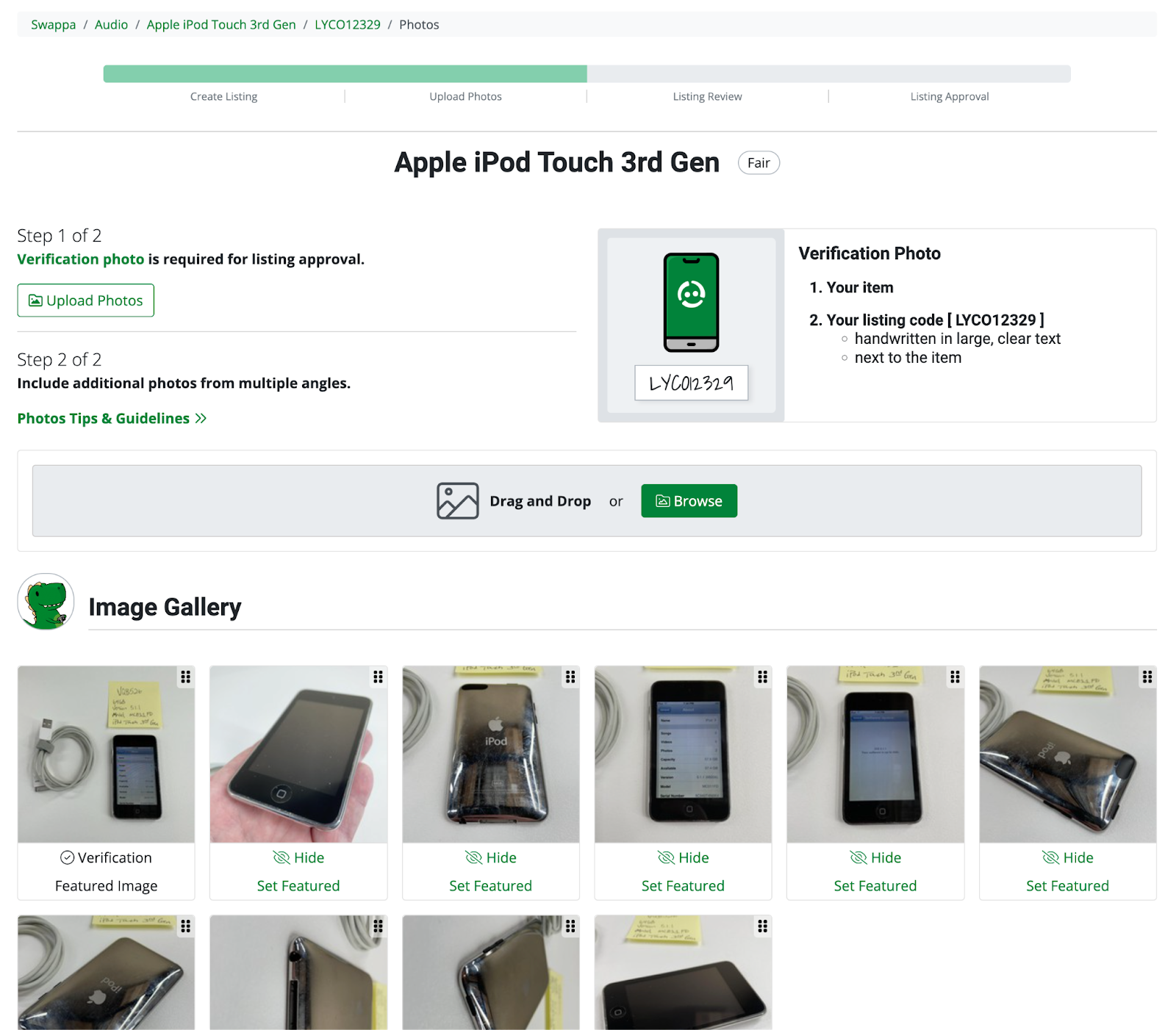
Uploading photos to your listing may seem like a daunting task but it’s very simple. All you need to do is write down the unique listing code assigned to your listing on a piece of paper and take a photo of it alongside your device. The resulting photo is what we call a Verification Photo. It’s a simple fraud prevention measure that demonstrates you have the device you’re selling on hand.
In addition to the verification photo, you’ll want to take photos of the device from multiple angles showing any wear or damage to the device. You can also include photos of the accessories. There aren’t any limits to the number of photos you can upload and we’ve found that the easier it is for a buyer to see the true condition of a device, the more confident they are to buy it.
When taking photos, use a clear, uncluttered background with decent lighting. The device should be in focus so Swappa staff and potential buyers can see the condition of the device. If you’re having trouble with lighting, you can take it outside or near a window. Natural light makes taking photos a lot easier.
After you’ve filled in the listing creation form and uploaded photos, the listing goes through a review process. Swappa moderators will contact you via email if you need to make any changes to your listing or upload additional photos.
Add Video to Your Listing
Showing off your device from every angle to increase buyer confidence. You don’t need to upload an edited, professional video. A short demonstration showing the device is in good working condition is enough to show potential buyers why they should choose your listing.
Don’t want to talk or be in front of the camera? You don’t have to. Hold the device in your hand and rotate it around. Give a brief visual tour of your device and any accessories included in your listing.
Be creative! Just make sure you accurately depict the device.
Listing video is an optional feature so if it’s not for you, there’s no pressure to use it.
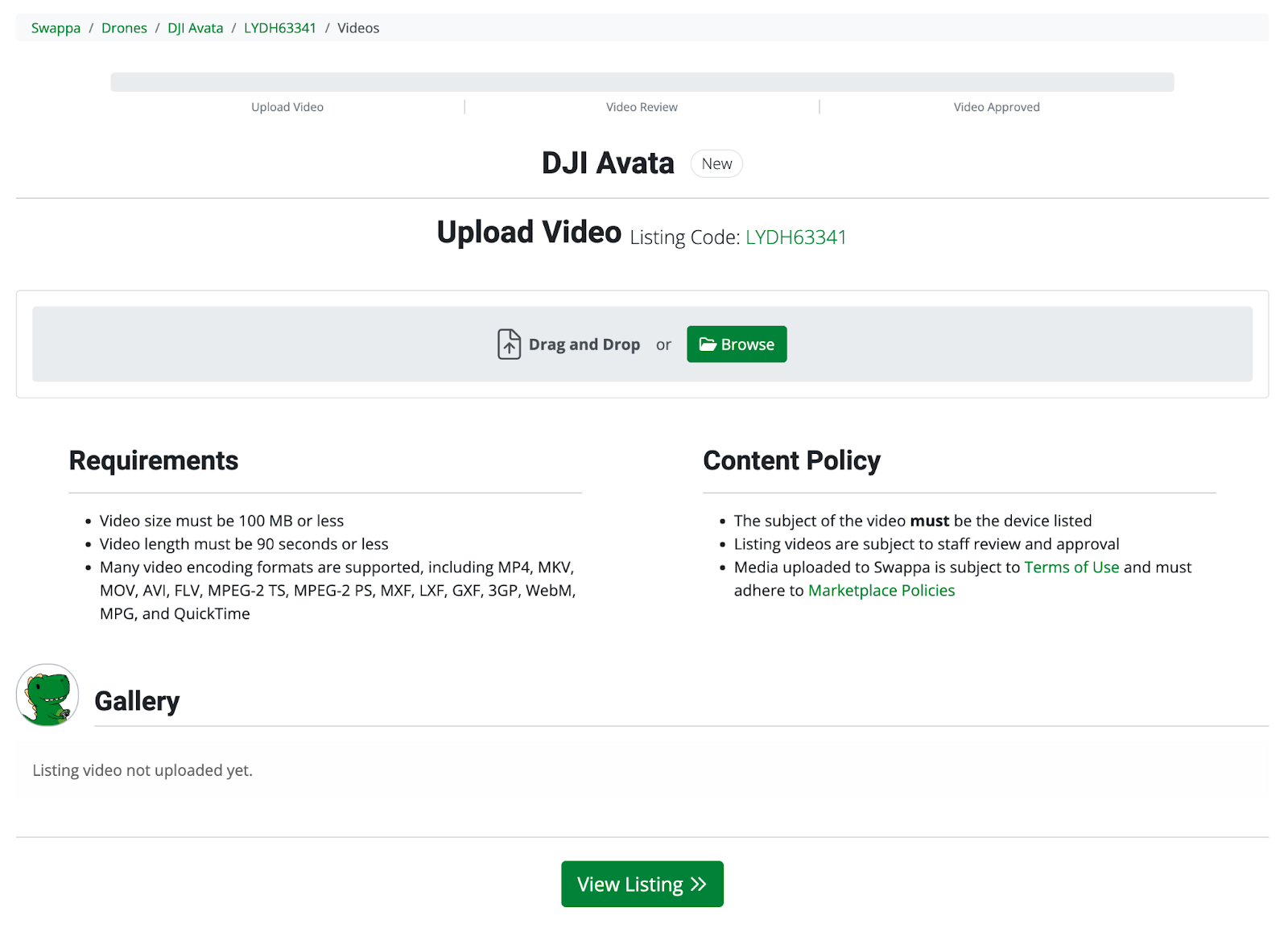
To add a video to your listing, click the Upload Listing Video button at the top of your listing page.

You’ll be taken to a video upload page where you can drag and drop the video.
Once it’s live, your listing will be available for purchase for 10 days. After 10 days, your listing will automatically be canceled unless you manually extend it. You can extend a listing in 10-day increments up to a total of 60 days. After the 60-day limit is reached, you’ll need to create a new listing for that device on Swappa.
Be sure to monitor your email for communication from prospective buyers or Swappa staff.
Ready to start selling on Swappa?