Updated – June 29, 2026
When you create a listing on Swappa, you will be asked to submit a verification photo. It is a simple requirement with a clear purpose: it proves you physically have the device you are selling. Once you understand what goes into a good verification photo, approval is straightforward.
This guide covers what a verification photo is, what it must include, how to take one that passes on the first try, and why the requirement matters for both sellers and buyers.
Quick Answer
A verification photo is a picture of your device placed next to a handwritten listing code assigned by Swappa. It proves you have the item, prevents fraudulent listings and stock-photo abuse, and is required before any Swappa listing goes live. Staff reviews photos before approving a listing.
What a Verification Photo Is and Why It Exists
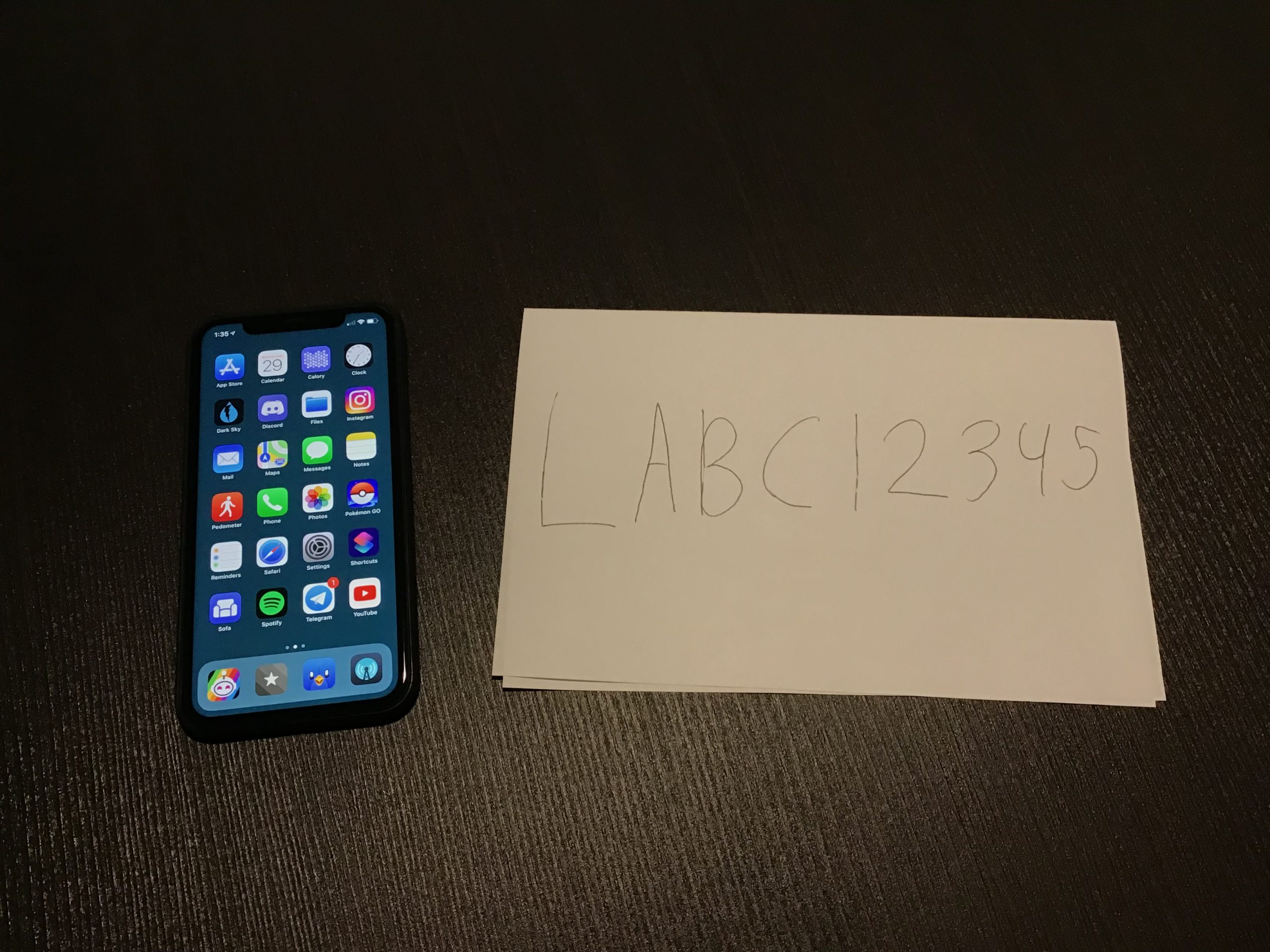
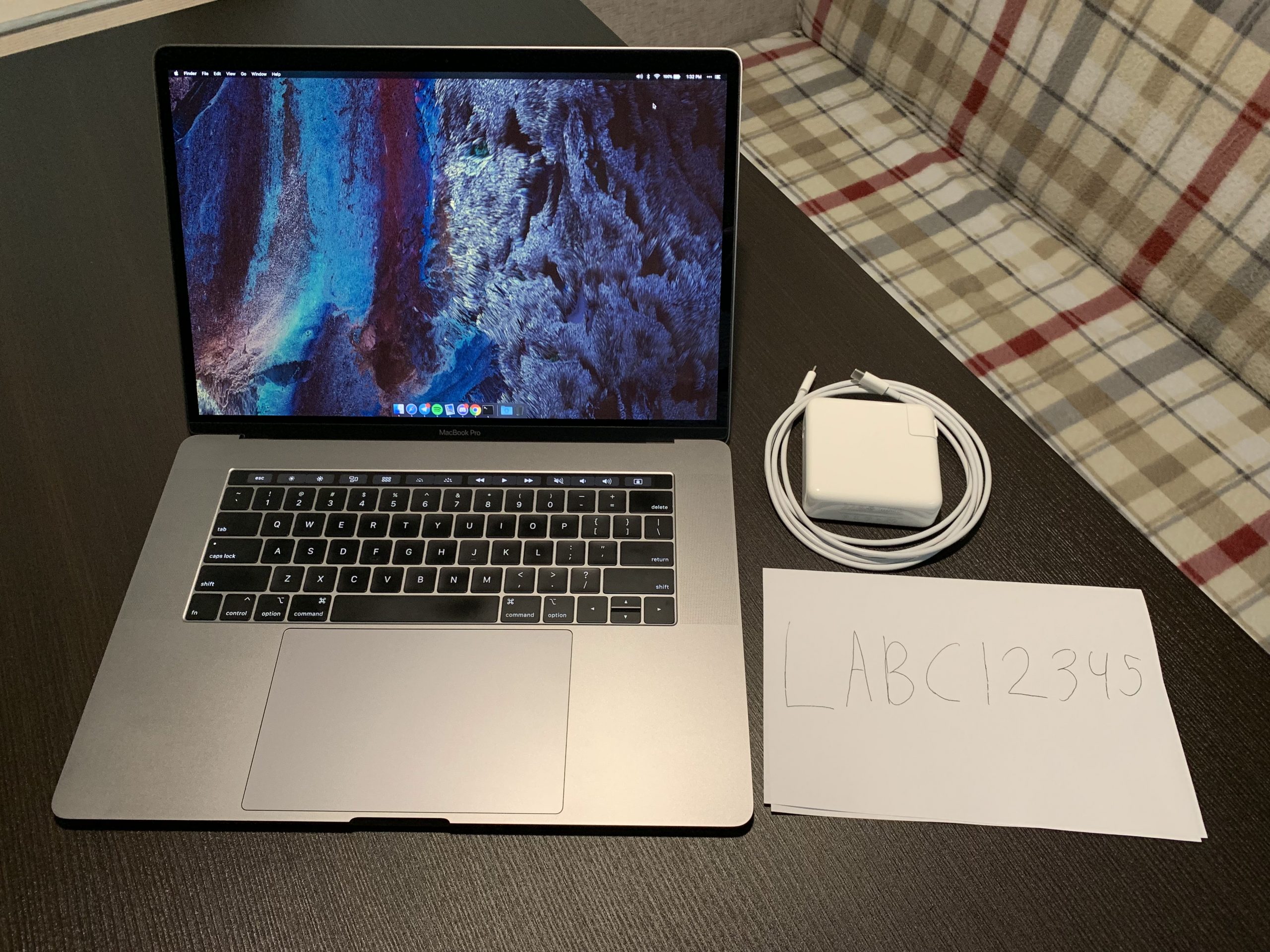
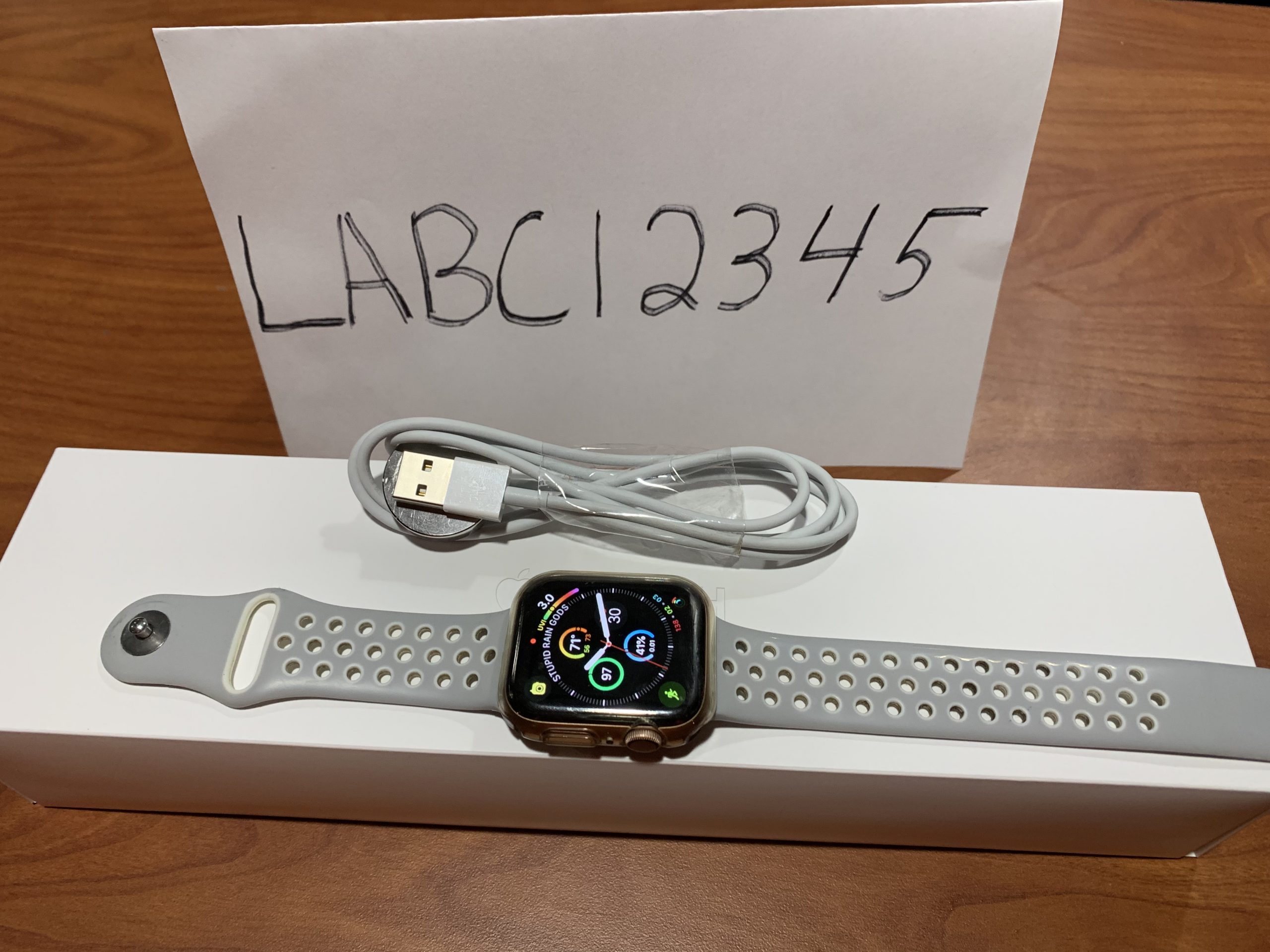
A verification photo is a single image that shows two things together: the actual device being sold and a unique listing code issued by Swappa at the time you create your draft listing. The code is written on a piece of paper placed next to the device. It is not digitally added to the photo.
This combination serves a specific purpose. Because the listing code is unique to your listing and generated at the moment you create it, a valid verification photo can only have been taken by someone who had the device in hand after creating that draft. It rules out stock photos, screenshots of other listings, and listings created by sellers who do not actually have the device.
Swappa staff review every verification photo before a listing goes live. This staff-reviewed process is one of the main reasons Swappa’s verified listings carry more weight than self-reported listings on open marketplaces. Buyers browsing Swappa can trust that the item in the photos actually exists with the seller who listed it.
Please Note: Power sellers can use their profile code instead of a Swappa Listing Code and Enterprise sellers are not required to provide a verification photo. Learn more about Power and Enterprise sellers.
How to Photograph Electronics for Listings
What to Include in a Verification Photo
Every verification photo must meet these requirements:
- Show the entire device with the screen on (home screen or primary interface, not a lock screen)
- Include the listing code written on a separate piece of paper, placed next to the device, not covering the device
- Do not include the IMEI number in the photo. The IMEI is sensitive identifying information and should stay out of frame entirely. Cover it if it appears on the device’s packaging or settings screen.
- The listing code must be clearly legible, not angled, crumpled, or blurred
The listing code is generated by Swappa after you create your draft listing. You will need to create the listing first, then take the photo. A photo taken before you created the listing will not contain a valid code and will not be accepted.
For items without a screen, such as a camera lens, AirPods case, or battery pack, show the item clearly next to the listing code. The screen-on requirement only applies to devices that have one.
Here are a few example verification photos:
How to Write a Listing Description That Sells
Verification Photos for New or Sealed Items
The requirements are slightly different when listing a device in new condition.
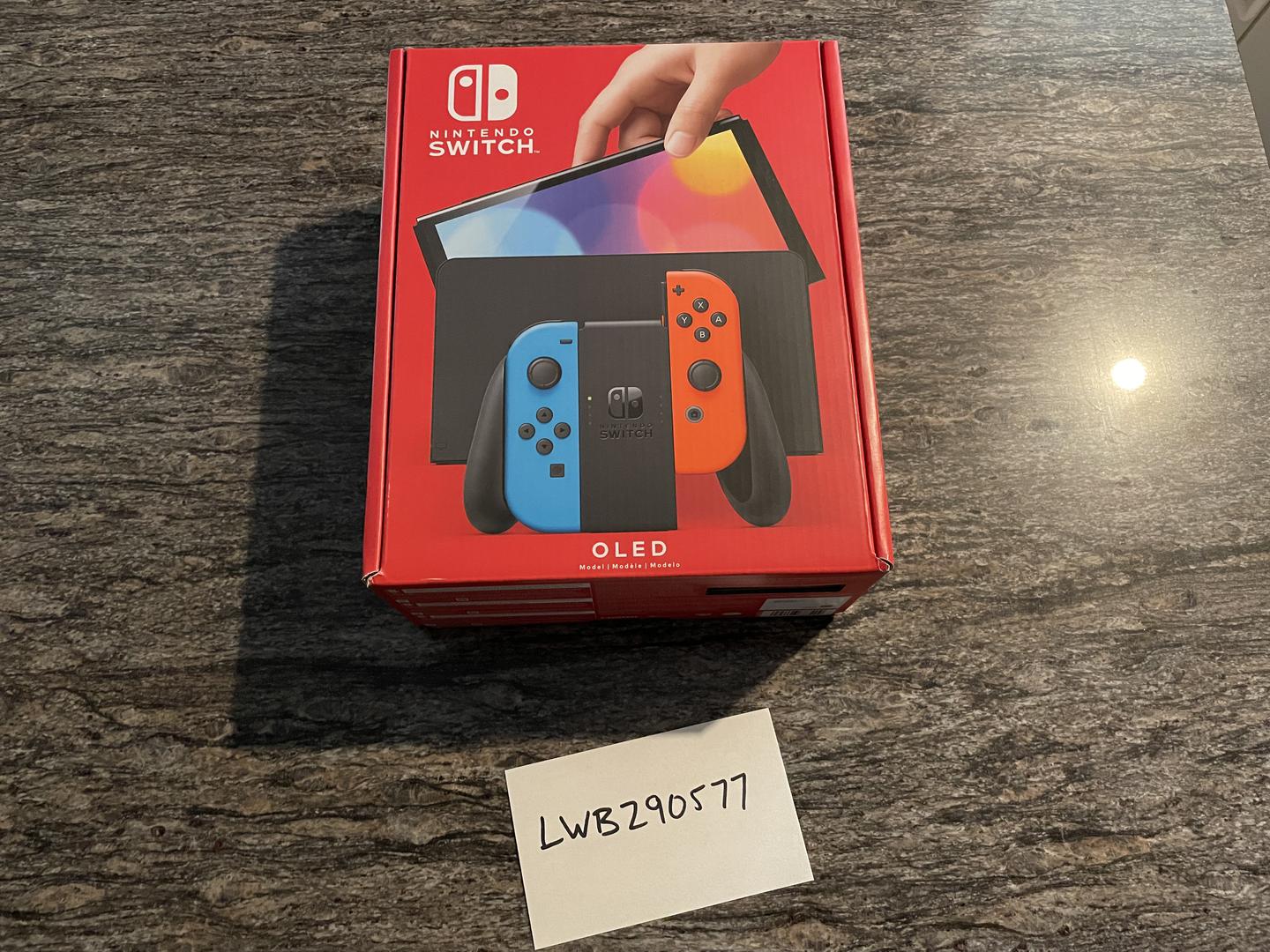
Factory-sealed items (unopened box, factory seal intact):
- Show the sealed box next to the listing code
- Include a separate photo showing the intact factory seal
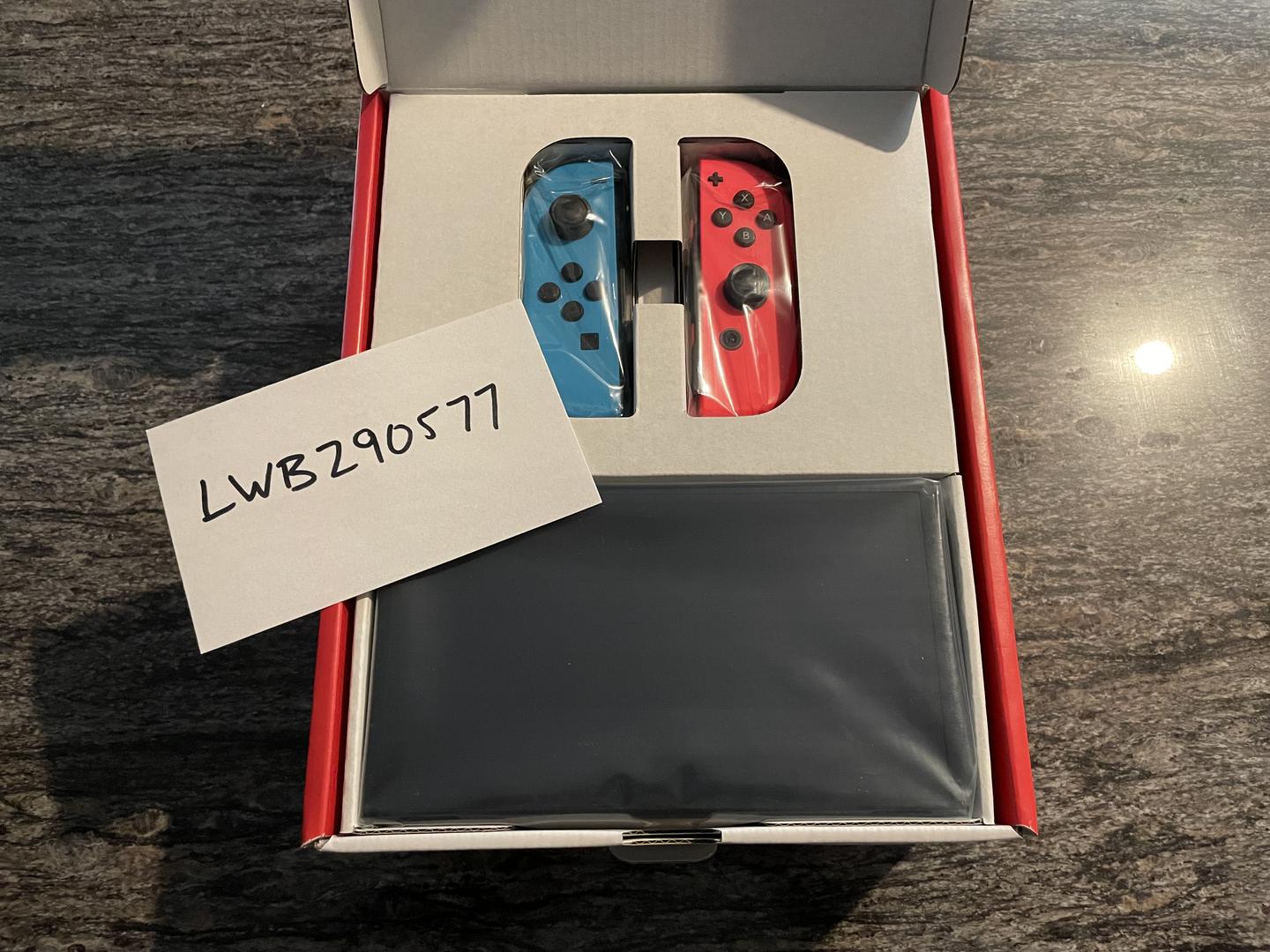
New but not factory-sealed (for example, a Nintendo Switch OLED that has been opened but not used):
- Show the box with contents visible next to the listing code
- Do not power on the device or remove it from the box for the verification photo
These extra steps help Swappa staff confirm the item has not been used, which is the basis for a “New” condition designation. For a full breakdown of condition tiers and what each requires, see Swappa’s condition requirements.
Here is an example verification photo for a device being listed in “New” condition:
Here is an example verification photo for a device being listed in “New” condition (that doesn’t include a seal from the factory):
Used Electronics Condition Grades, Explained
How to Take a Verification Photo That Gets Approved
The verification photo also functions as part of your listing and is visible to buyers. A clear, well-shot photo builds buyer confidence and can directly affect whether someone decides to purchase. Getting it right the first time saves time and gets your listing live faster.
Use a neutral background. A plain desk, table, or countertop works well. Avoid cluttered surfaces that pull attention away from the device.
Shoot in good light. Natural light near a window is ideal. A well-lit room works too. Avoid deep shadows or direct flash that washes out surface detail.
Shoot in landscape orientation. Most devices look better framed this way and give more context.
Write the listing code clearly. Use a pen on a plain piece of paper. Print clearly, keep the paper flat, and place it beside the device so both are in frame without one covering the other.
Show the full device. Do not crop out edges or corners. Buyers and Swappa staff need to see the entire item.
Consider multiple angles. A front-facing photo is required, but additional shots of the back, sides, and any cosmetic details help buyers evaluate condition and reduce the chances of a post-sale dispute.
Common Reasons a Verification Photo Gets Rejected
Swappa staff flag verification photos for a handful of recurring reasons. Knowing them in advance helps you avoid a rejection:
- Listing code was digitally added (text overlay, Photoshop, screenshot annotation). This defeats the purpose. The code must be physically written and present in the scene.
- Screen is off. Power the device on and navigate to the home screen before shooting.
- Listing code is unreadable. Blurry, angled, or partially obscured codes cannot be verified. Reshoot with the paper flat and the code clearly in frame.
- IMEI is visible. Cover it or keep it out of frame entirely. This is a privacy requirement, not just a preference.
- Photo is a stock image or taken from another listing. Swappa staff recognize these patterns, and the listing will be rejected.
- Sealed box listing is missing the seal photo. New items require that separate shot confirming the factory seal is intact.
What Happens After You Submit the Photo
Swappa’s staff reviews the listing before it goes live. If your verification photo does not meet the requirements, you will receive a notification explaining what needs to be corrected. You can resubmit a corrected photo without losing your listing progress.
This review step also acts as a check on the rest of the listing. Staff confirm that the item meets Swappa’s listing criteria: clean IMEI or ESN, no activation lock or OS lock, fully paid off, no water damage, no cracked glass, and a fully functional battery. A device that does not meet these standards will not be approved regardless of the verification photo.
For questions about specific rejection reasons, Swappa support responds around the clock with a typical response time of about 20 minutes.
How Verification Photos Protect Buyers
The verification photo requirement is primarily a seller action, but its benefits flow directly to buyers. Listings approved on Swappa have passed a human review process. That means:
- The device shown in the listing photos actually exists with the seller
- The listing was not assembled from stolen images or manufactured descriptions
- A human reviewed the listing before it went live, not just an automated filter
Swappa also runs AI-powered fraud prevention alongside staff review. Between the two, fraudulent listings rarely reach buyers. If you ever have a concern about a listing or a transaction, How to Avoid Scams When Buying Used Electronics covers the broader warning signs to watch for. The short version: if something feels off, contact Swappa support before completing the purchase.
Used phones on Swappa typically sell for 30 to 60 percent less than retail, depending on model, storage, and condition. Prices vary and fluctuate, so check current market prices before you list or buy.
Frequently Asked Questions
Can I use a photo I already took before creating the listing?
No. The listing code is generated when you create your draft listing. Any photo taken before that point will not contain the correct code and will be rejected. Take the verification photo after you have your listing code in hand.
Where do I find my listing code?
You will receive the listing code during the listing creation process. It is a short alphanumeric code specific to that listing. It will not match any other listing.
Does the verification photo appear on my public listing?
Yes. Verification photos are included in your listing and visible to potential buyers. This is another reason to take a quality photo. It is often the first impression a buyer has of the device’s actual condition.
What if my item does not have a screen?
For accessories or items without a screen, such as a camera lens, AirPods case, or a battery pack, show the item clearly beside the listing code. Skip the screen-on requirement since it does not apply.
Can I list on Swappa without submitting a verification photo?
No. A valid verification photo is required for individual listings. Your listing will not go live until one is submitted and approved by Swappa staff.
Does the verification photo requirement mean Swappa has seen the device’s condition?
Yes, in part. Staff review the verification photo and the listing as a whole before approving it. They check that the item appears to meet listing criteria. This is what “staff-reviewed verified listing” means on Swappa. It is not a physical hands-on inspection, but it is a real human review.